
Google Business Profile Audit Checklist: What to Check and How to Fix Common Issues

Freelancer Tawhid
SEO Expert and Consultant
- October 13, 2026
- No Comments
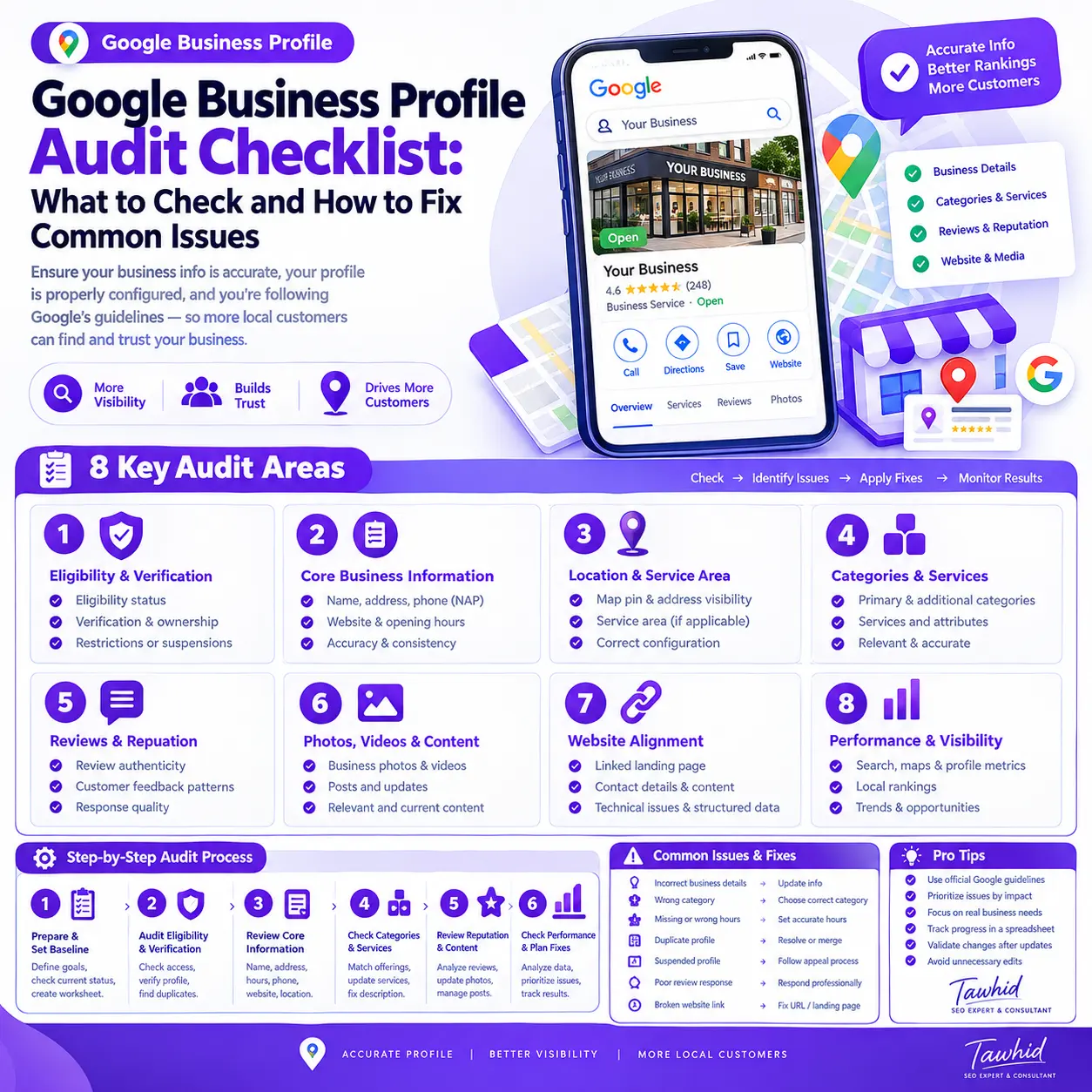
A Google Business Profile audit checklist helps you identify inaccurate business information, configuration problems, policy issues, and missed opportunities that may affect how customers discover and interact with your business on Google Search and Maps. A thorough audit examines eligibility, verification, business details, categories, reviews, photos, website links, and performance data so you can prioritize the right fixes.
Whether you manage a single business location or multiple eligible locations, auditing your Google Business Profile regularly helps you maintain accurate information, identify potential problems, and make informed optimization decisions.
However, an audit is not simply about completing every available field or maximizing a third-party score. The goal is to represent your business accurately, comply with Google’s guidelines, improve the customer experience, and identify issues that deserve attention.
This guide walks you through the complete audit process, explains how to diagnose common problems, and provides a practical checklist you can use to track your findings and corrective actions.
Google Business Profile Audit Checklist at a Glance
Use this quick checklist to review the essential areas of your Google Business Profile before examining each one in detail.
Audit Area | What to Check | Recommended Action |
Eligibility and profile health | Business eligibility, verification, ownership, restrictions | Resolve access, eligibility, or policy problems |
Core business information | Name, address, phone number, website, hours | Correct inaccurate or outdated information |
Location configuration | Map pin, address visibility, service areas | Match the settings to actual business operations |
Categories and services | Primary category, additional categories, services | Ensure they accurately represent the business |
Business description and attributes | Description, available attributes, relevant details | Correct misleading or incomplete information |
Reviews and reputation | Review authenticity, customer feedback, responses | Follow review policies and respond professionally |
Photos and content | Business photos, videos, supported updates | Maintain relevant and authentic content |
Website alignment | Destination URL, contact details, location information | Fix broken links and important discrepancies |
Performance | Searches, views, calls, website clicks, other available metrics | Review trends and investigate significant changes |
Final action plan | Evidence, priorities, corrections, validation | Track issues through completion |
How to use this checklist
For every item, assign one of four statuses:
- Pass: The information is accurate and no action is required.
- Needs Fix: You have confirmed an issue that requires correction.
- Needs Investigation: You have identified a possible issue but need more evidence.
- Not Applicable: The field or feature does not apply to the business.
Record the evidence, recommended action, priority, and completion status for every finding.
This distinction is important. A field should not automatically be considered defective merely because it is missing, and an unexplained decline in visibility should not automatically be blamed on a profile setting.
What Is a Google Business Profile Audit?
A Google Business Profile audit is a systematic review of a business listing’s accuracy, eligibility, configuration, customer-facing information, policy compliance, website connection, and available performance data.
Its purpose is to establish the current condition of the profile, identify potential problems, and determine which corrective actions are justified.
An audit typically examines:
- Whether the business is eligible for a profile.
- Whether the correct person or account manages it.
- Whether its business information is accurate.
- Whether categories and services reflect its actual operations.
- Whether reviews and other profile content follow Google’s policies.
- Whether the linked website provides a suitable customer experience.
- Whether available performance data reveals meaningful changes.
Google recommends maintaining accurate business information and following its Guidelines for representing your business on Google.
Google Business Profile audit vs. optimization
An audit and optimization are related, but they are not the same activity.
An audit identifies and evaluates issues. Optimization involves implementing appropriate improvements. Monitoring helps establish whether the corrections were applied successfully and whether meaningful outcomes changed afterward.
For example, an audit might identify incorrect business hours. Optimization involves correcting those hours, while validation means checking that the updated information appears correctly on the public profile.
Similarly, a decline in website clicks might justify investigating the destination URL, reporting period, and customer journey. It does not automatically justify changing the business category.
A structured audit helps you make these decisions based on evidence rather than guesswork.
What can you audit without account access?
You can inspect many public-facing elements without being an owner or manager of the profile.
These include the displayed business name, address or service-area information where visible, categories, hours, website link, photos, reviews, and other publicly available details.
However, reviewing private management settings, ownership permissions, certain profile fields, and performance reports requires appropriate account access.
According to Google’s Business Profile performance documentation, performance reporting is available for verified profiles to users signed in to an associated Google Account.
If you discover an ownership problem, request access to the existing profile through Google’s official process instead of creating another listing.
Step 1: Prepare Before Starting Your GBP Audit
A reliable audit begins with a baseline. Before editing the profile, document what currently exists and identify the business information against which it should be checked.
Confirm that you are auditing the correct profile
Verify that the profile represents the correct business, location, and operating entity.
For a business with multiple locations, make sure you are reviewing the appropriate eligible location rather than mixing information from different branches.
Record the public profile URL and identify who currently manages it. Where possible, confirm that the business owner retains appropriate control of the profile, even if an agency or consultant performs the audit.
Record the current state of the profile
Before making changes, document:
- The displayed business name and contact information.
- Address visibility and service-area configuration, where applicable.
- Regular hours and relevant special hours.
- Primary and additional categories.
- Business description, available services, and attributes.
- Review rating, customer feedback, and response patterns.
- Available photos and other profile content.
- The website URL connected to the profile.
- Current verification or restriction status.
- Available performance data for a consistent reporting period.
Screenshots can be useful evidence, particularly when documenting inaccurate details, rejected edits, or suspected policy problems. Avoid recording unnecessary personal or confidential information.
Establish a performance baseline
Where you have account access, record available profile metrics before significant changes.
Choose a meaningful reporting period and note important business changes, such as relocation, altered opening hours, new services, or website updates.
This baseline gives you something to compare against later. Without it, it can be difficult to distinguish a genuine change from normal fluctuations in customer activity.
Avoid changing everything at once
Do not treat an audit as an instruction to edit every field.
First identify the issues, verify their causes, and decide which changes are necessary. Correct serious inaccuracies or policy problems promptly, but avoid introducing unnecessary changes merely to make the profile appear different.
Step 2: Audit Profile Eligibility, Verification, and Ownership
Profile eligibility and account health should be checked before spending time on minor optimization opportunities. Some problems cannot be resolved by improving descriptions, adding photos, or adjusting categories.
Check whether the business is eligible for a Google Business Profile
Google Business Profiles are intended for eligible businesses that make in-person contact with customers during their stated hours, subject to Google’s rules and exceptions.
A storefront business may receive customers at its business location. A service-area business travels to or delivers to customers without receiving them at its business address. A hybrid business does both.
An online-only business that does not meet Google’s eligibility requirements should not create a profile simply to gain visibility in local search.
How to fix an eligibility problem: Review the official Business Profile eligibility and ownership guidelines and ensure that the business meets the applicable requirements before attempting verification.
Do not attempt to establish eligibility through a virtual office, misleading address, or other artificial arrangement.
Verify the profile’s status and management access
Confirm that the profile is verified where verification is required and that the authorized business owner or representative can access it.
If the profile is managed through an account that no longer belongs to the business, determine whether access needs to be transferred or requested.
Do not create a replacement listing just because the current profile is controlled by another account.
For the step-by-step procedure, read this Google Business Profile verification guide.
Check for duplicate profiles
Search Google Maps and Google Search for other listings that may represent the same business.
Look for duplicate names, addresses, phone numbers, or profiles that appear to have been created during a change of ownership or location.
A duplicate can confuse customers and complicate profile management. However, not every listing at the same address is necessarily a duplicate; some distinct businesses may legitimately share a location.
Google explains that a business should generally have one profile for the same business and provides guidance on resolving duplicate profiles and ownership issues.
How to fix a confirmed duplicate: Determine which listing represents the legitimate business and follow Google’s appropriate ownership, duplicate-resolution, or merge process. Do not automatically delete listings without investigating the circumstances.
Check for suspensions, restrictions, and rejected edits
Determine whether the profile is:
- Verified and accessible.
- Awaiting a verification step.
- Affected by a rejected edit.
- Restricted because of a policy violation.
- Suspended or disabled.
- Active but experiencing poor visibility.
These are different problems and require different responses.
A rejected business-name edit, for example, does not necessarily mean the entire profile is suspended. Likewise, a profile that is difficult to find in Maps is not automatically suspended.
How to fix the problem: Identify the precise status, inspect the relevant policy, and follow the appropriate official procedure. If the profile is suspended, review the underlying compliance issues before submitting an appeal.
For more detailed help, consult this Google Business Profile suspension and appeal guide.
Step 3: Audit Core Business Information
Accurate business information is one of the most important parts of a Google Business Profile audit. Customers should be able to identify the business, understand how it operates, and contact it without confusion.
Check the business name
Compare the name shown on Google with the business’s actual name as consistently represented in the real world.
Look for:
- Outdated branding.
- Incorrect spelling.
- Unnecessary keywords added to the name.
- Promotional slogans that are not part of the actual business name.
- Extra location or service terms added solely to influence rankings.
For example, a business named “Northside Plumbing” should not change its profile name to “Northside Plumbing Best Emergency Plumber” unless that complete wording genuinely meets Google’s rules for representing the business name.
How to fix it: Correct inaccuracies and use the genuine business name. Add categories, addresses, hours, and service information in their designated fields rather than inserting extra keywords into the name.
Google warns that including unnecessary information in a profile name can lead to problems, including suspension. See its business representation guidelines.
Verify the address and map pin
For a business that receives customers at its location, check that its address is complete and accurate and that the map pin identifies the correct place.
Confirm that the displayed address corresponds to a genuine, eligible business location rather than a virtual office or a mailing address that does not represent an operating business.
If the address is difficult to identify, investigate whether the map pin needs correcting.
How to fix it: Update inaccurate location information through the appropriate profile settings. If the address or location change triggers a verification request, follow the instructions Google provides.
Do not invent an address or use an ineligible location to create a new listing.
Check service-area settings
For service-area businesses, verify that the selected areas reflect where the business genuinely serves customers.
If the business does not receive customers at its business address, Google’s guidance says that address should be hidden from the public profile.
A hybrid business that serves customers at its premises and also travels to them may be able to display the address and set a service area.
How to fix it: Match the configuration to the actual operating model. Remove areas the business does not serve, correct an inappropriate public address, and avoid selecting distant locations simply to target additional searches.
Google explains these requirements in its guidance on managing service areas for service-area and hybrid businesses.
For a more detailed explanation, read the guide to Google Business Profile for service-area businesses.
Verify the phone number and website URL
Check whether the listed phone number connects customers to the correct business or location.
Where possible, test the number and confirm that it reaches the intended destination.
Next, open the website link from the public profile. Check whether the page loads correctly, represents the business, and helps visitors take the next step.
Look for:
- Broken pages or redirects.
- Links that lead to an unrelated business.
- Outdated website destinations.
- Incorrect contact details on the landing page.
- A general homepage where a more relevant location page would better serve the visitor.
A location-specific landing page can be useful for a multi-location business when it provides accurate, genuinely useful information about that particular location. Do not create thin, repetitive pages solely to target different locations.
How to fix it: Correct the profile’s website URL or phone number when it is inaccurate, then test the corrected destination.
Review opening hours and special hours
Compare the listed hours with the business’s real operating schedule.
Check for outdated regular hours, incorrect closing times, planned closures, seasonal changes, and relevant holiday hours.
A profile can otherwise appear accurate while still giving customers misleading information about when they can visit or contact the business.
How to fix it: Update regular hours and use supported special-hours settings when applicable. Review the information again after a meaningful business-schedule change.
Refer to Google’s Business Profile guidelines for applicable requirements and available settings.
Step 4: Audit Categories, Business Description, Services, and Attributes
These fields help customers understand what a business does. Review them for accuracy and relevance rather than trying to populate every available field or add as many keywords as possible.
Review the primary and additional categories
The primary category should describe the business’s main activity as accurately as possible. Additional categories should reflect other legitimate aspects of the business rather than unrelated services.
Ask:
- Does the primary category accurately represent the business?
- Are additional categories genuinely applicable?
- Have the business’s activities changed since the profile was last reviewed?
- Were any categories selected solely because a competitor uses them?
- Are unrelated categories present?
How to fix it: Compare the actual business offering with Google’s available categories and make changes only when a more accurate option is justified.
Google recommends using the fewest appropriate categories needed to describe the business. Categories are not a field for listing every service or keyword.
For a detailed explanation, read How to Choose the Right Google Business Profile Categories.
Do not assume that copying a competitor’s category configuration will improve your rankings. Different businesses may have different primary activities, locations, and competitive circumstances.
Review the business description
The description should explain what the business genuinely offers and provide useful context for potential customers.
Check for:
- Outdated services or business information.
- Repetitive keyword phrases.
- Unsupported claims.
- Promotional language that does not belong in the field.
- Irrelevant content.
- Information that may mislead customers.
How to fix it: Rewrite the description where needed so it is clear, accurate, and focused on the business’s actual services, products, or purpose.
Follow the current content requirements for the description field, including Google’s restrictions on links and certain promotional content.
Audit the Services section
Where the Services section is available, check whether the listed services accurately represent the business’s current offering.
Look for missing core services, outdated service descriptions, duplicate entries, and services that the business does not actually provide.
How to fix it: Update the available service information so it reflects genuine business operations. Avoid using the section as a place to insert unrelated keywords.
For further guidance, consult Google’s instructions for managing services on a Business Profile.
Retail businesses can also review supported product information where available. Do not assume all profile types have identical fields or features.
Review attributes and other available details
Depending on the business category and profile, Google may offer attributes describing factual features or amenities.
Check the available fields for accuracy and relevance. For example, a business should not claim to offer an amenity or accessibility feature that it does not actually have.
How to fix it: Update incorrect details and complete applicable fields accurately. If an attribute is unavailable or irrelevant to the business, mark it as not applicable in your audit worksheet rather than treating it as a defect.
Step 5: Audit Google Reviews and Reputation
Reviews can influence customer decisions and contribute to how well-known a business appears. They should be examined for authenticity, customer-service insights, and appropriate response practices.
Review the authenticity of customer feedback
Examine the overall review pattern and investigate unusual activity when there is a legitimate reason for concern.
For example, a sudden cluster of reviews may warrant further investigation, but it is not proof of manipulation by itself. Customers may leave reviews after a genuine service interaction, event, or change in business activity.
How to fix a suspected review-policy problem: Review Google’s policy and use the appropriate reporting process where evidence supports a genuine violation.
Do not buy reviews, offer incentives for ratings, ask people to post reviews for experiences they did not have, or selectively solicit positive reviews while discouraging negative feedback.
Google prohibits fake engagement and incentivized reviews under its prohibited and restricted content policies.
Assess how the business responds to reviews
Review the business’s replies to positive, neutral, and negative feedback.
Useful responses are professional, relevant, and respectful. They should acknowledge genuine concerns and, where appropriate, explain what the business can do to help.
Avoid generic replies that add no value, arguments with customers, or disclosures of private information.
How to improve review management:
- Respond to feedback where a response is useful.
- Acknowledge legitimate problems without becoming defensive.
- Keep sensitive discussions out of public replies.
- Use recurring feedback to identify operational improvements.
- Encourage genuine customers to share honest experiences without incentives or pressure.
Understand which reviews can be removed
A negative review is not automatically a policy violation.
A customer may leave an unfavorable review even when the business disagrees with their assessment. Removal should be pursued when the review appears to violate Google’s applicable policies, not simply because it lowers the average rating.
How to fix a qualifying issue: Report the review through Google’s official process and follow the available status or appeal steps.
Read Google’s guide to reporting inappropriate reviews.
If the business needs a more systematic approach to customer feedback, consider your Reputation Management service.
Step 6: Check Photos, Videos, and Other Profile Content
Visual content helps potential customers understand what a business looks like and what it offers. An audit should check accuracy and usefulness rather than assume that more uploads automatically lead to better rankings.
Review business photos and videos
Inspect the available imagery for relevance, authenticity, and currency.
Depending on the business, useful images may show the storefront, interior, products, services, equipment, work, or team.
Look for outdated branding, irrelevant images, poor-quality uploads, and visuals that no longer represent the business accurately.
How to fix it: Add genuine, relevant photos and videos that follow Google’s current content guidelines. Replace obsolete content when appropriate.
Remember that uploading a cover image does not guarantee Google will display that image first on the public profile.
See Google’s guidance on managing Business Profile photos and videos.
Review posts and supported updates
If the profile supports posts or updates, check whether the information remains accurate and useful.
Remove or update content that refers to expired offers, outdated events, discontinued services, or incorrect business details.
The objective is to help customers make informed decisions, not to publish updates at an arbitrary frequency in the hope of influencing rankings.
Step 7: Audit Website Alignment and Business Information Consistency
A Business Profile should lead customers to a website that accurately represents the business. Reviewing this connection helps identify issues that could undermine trust or interrupt the customer journey.
Inspect the linked landing page
Open the website URL displayed on the profile and check the destination against the following criteria:
- The page loads correctly on desktop and mobile.
- The business name and identity are clear.
- Contact information is accurate.
- The content reflects the advertised services or products.
- The visitor can understand the next step.
- The page represents the relevant business or location.
- There are no obvious broken links or misleading redirects.
For a business with several locations, a useful location landing page may offer branch-specific hours, contact details, directions, and relevant information. The page should provide genuine value rather than merely repeat the same content with a different location name.
How to fix it: Correct broken or irrelevant URLs, resolve important inconsistencies, and make it easier for customers to contact the business.
Check business information across other important sources
Where appropriate, compare key details on the website with those on reputable directories, official business pages, and other relevant sources.
Prioritize material differences, such as an incorrect phone number, outdated address, or business name that no longer reflects the actual company.
Do not spend time editing every minor variation in punctuation or formatting when it does not create meaningful confusion.
How to fix it: Correct inaccurate details at the appropriate source and investigate discrepancies that may mislead customers or indicate outdated business information.
Check relevant website technical issues
A profile audit is not a full technical SEO audit, but a few website checks can reveal obvious problems.
Verify that the linked page works, the intended content is accessible, and important contact information is not hidden behind a broken interface.
For suitable websites, LocalBusiness structured data may help search engines understand business details. Markup must accurately describe the business and follow Google’s current requirements. It does not replace a correctly configured Business Profile or guarantee enhanced search visibility.
If your findings extend into wider website structure, indexing, content, or technical issues, a comprehensive Local SEO audit may be more appropriate.
Step 8: Audit Google Business Profile Performance and Local Visibility
Profile performance data helps you understand how customers discover and interact with the business. However, metrics must be interpreted carefully: an increase or decrease does not, by itself, explain why something happened.
Review available Business Profile Performance data
For a verified profile with the appropriate access, check the performance information available in the management interface.
Depending on the profile and its features, metrics may include:
- Searches associated with the profile.
- Profile views.
- Calls initiated through the profile’s call button.
- Website clicks.
- Direction requests.
- Messages or bookings, where supported.
- Other applicable profile interactions.
Google explains these metrics in its Business Profile performance documentation.
Important: A click on the call button does not prove that a call was answered. A direction request does not establish that a customer visited the business. A website click does not necessarily represent a qualified lead.
Treat each metric as evidence of a particular interaction, not proof of a final business outcome.
Compare performance across meaningful periods
Use a consistent reporting period and account for relevant changes in the business.
For example, a decline in calls could relate to an incorrect phone number, changed operating hours, seasonal demand, shifts in customer needs, or other factors. The data alone may not distinguish between those explanations.
Investigate the dates and circumstances before changing profile settings.
Avoid drawing strong conclusions from a single day or an inconsistent comparison period.
Understand why local visibility varies
Google describes local results in terms of relevance, distance, and prominence or popularity. Relevance concerns how well a profile matches a search. Distance concerns the searcher’s location relative to the business. Prominence relates to how well-known the business is, based on information Google can use to assess it.
Read Google’s guidance on improving local ranking.
This matters because a business can have accurate information and still rank differently for searches from different locations or for different queries.
A single manual Google Maps search is not a comprehensive measure of local visibility. If you use a local rank-tracking tool, assess a consistent set of relevant searches and locations and remember that its results are samples rather than a universal ranking position.
For a more detailed approach to metrics and interpretation, see How to Measure Google Business Profile Performance.
Connect profile activity with website visits and leads
Where appropriate tracking is configured, compare profile activity with website sessions, enquiries, and other meaningful outcomes.
Google Analytics 4 and URL tracking parameters can help connect website traffic with its source. Google also provides a process for connecting a Business Profile with Google Analytics.
Check that tracking works correctly before interpreting the numbers.
A rise in website clicks may be useful, but the business should also consider whether those visits result in relevant enquiries, bookings, purchases, or other intended outcomes.
The goal is to understand performance more accurately, not to assume every increase in a profile metric is a business success.
Step 9: Diagnose Common Google Business Profile Problems
When a profile has a problem, the best next step depends on what you have actually observed. The following table helps distinguish symptoms from possible causes.
Observed Problem | What to Investigate | Appropriate Next Step |
Profile is missing from Search or Maps | Eligibility, verification, duplicates, restrictions, and the specific search context | Confirm the profile’s status and eligibility before making changes |
Business information is incorrect | Actual business details, management access, and recent changes | Correct verified factual errors |
An edit was rejected | The affected field and its applicable content or eligibility rules | Review the relevant guideline and submit a compliant correction |
Duplicate profiles appear | Business identity, ownership, address, and eligibility | Follow Google’s duplicate-resolution or ownership process |
Visibility appears to have declined | Search queries, dates, locations, performance trends, competition, and recent changes | Investigate the evidence before changing settings |
Calls or website clicks have dropped | Available interaction data, contact details, website destination, and tracking | Verify the relevant issue and correct confirmed problems |
Reviews appear suspicious | Review content, timing, and relevant policy evidence | Report genuine policy violations through Google’s process |
Profile is suspended | Suspension notice, account status, business eligibility, and compliance | Follow the official appeal process after investigating the cause |
Why this diagnostic approach matters
Different problems can produce similar symptoms.
For example, a profile that does not appear for a particular query might still be visible for other relevant searches. A profile that is missing entirely may require a different investigation involving its status or eligibility.
Likewise, falling website clicks may be caused by changes in customer demand, inaccurate contact information, an unsuitable landing page, or other factors.
Do not respond to every problem by changing the primary category, adding more keywords, creating a new profile, or editing unrelated settings.
Confirm the problem first, then choose the appropriate action.
Step 10: Prioritize and Implement Audit Findings
Once the audit is complete, organize the findings according to their seriousness, business impact, and urgency.
The following framework is a practical working method, not an official Google scoring system.
Priority 1: Resolve eligibility, access, and policy issues
Start with problems that affect whether the business can legitimately use or manage the profile.
Examples include an ineligible configuration, an unresolved ownership issue, duplicate listings, serious policy violations, or an existing suspension.
Use the relevant official process rather than applying cosmetic optimization to a profile with an unresolved fundamental issue.
Priority 2: Correct critical business information
Next, correct confirmed inaccuracies in business details.
Examples include an incorrect phone number, outdated opening hours, a broken website URL, or an address configuration that does not reflect the actual operating model.
These corrections should accurately represent the business. They should not be treated as guaranteed ranking improvements.
Priority 3: Improve relevant information and the customer experience
Review categories, descriptions, services, applicable attributes, photos, and review management.
Prioritize the fields that contain actual problems or omissions. Do not change accurate information just to make the profile look more optimized.
Priority 4: Address supporting website and measurement issues
Finally, review website issues, tracking limitations, and broader SEO concerns identified during the audit.
If the profile is accurate but wider local visibility remains a concern, investigate relevant website content, local landing pages, authority signals, search competition, and the overall local SEO strategy.
Use an audit worksheet to track implementation
A simple spreadsheet can turn your findings into a repeatable workflow.
Finding | Evidence | Priority | Required Action | Status | Validation |
Incorrect opening hours | Confirmed against the current business schedule | High | Correct the hours | In progress | Check the public profile after the edit |
Possible duplicate profile | Two listings appear to represent the same business | Needs investigation | Verify identity and ownership | Open | Confirm the appropriate official resolution |
Outdated website URL | Existing destination no longer represents the business | High | Correct the destination | Not started | Open and test the updated link |
Reduced website clicks | Lower click count in the selected reporting period | Needs investigation | Compare dates and check the customer journey | Open | Reassess using a consistent reporting period |
Adjust the priorities to the circumstances of the business. An inaccurate address or a suspension may require more urgent attention than an outdated optional photo.
Validate changes after implementation
After a correction, check whether the information displays as intended and whether the relevant problem has actually been resolved.
Some changes may take time to appear or may require verification or review. Follow the status information provided by Google instead of repeatedly submitting the same edit without understanding what happened.
Record the change and recheck relevant metrics over a suitable period. Avoid attributing an outcome to a change without considering other possible explanations.
Step 11: Tools for a Google Business Profile Audit
You do not always need paid software to perform a useful audit. Start with the tools that provide the information required for your particular checks.
Google Search and Google Maps
Use public search results and Maps to inspect the visible profile, business details, reviews, photos, and website link.
These checks are useful for finding obvious inconsistencies, but they do not expose every management setting or private performance report.
The Google Business Profile management interface
Use the appropriate account to review available profile settings, management access, verification status, supported content fields, and performance data.
This is the appropriate place to confirm information that cannot be established from the public listing alone.
Google Business Profile Performance and Google Analytics 4
Performance reports can show how people discover the profile and what actions they take on it. Google Analytics 4 can help analyze relevant website activity when tracking is configured correctly.
Neither tool automatically identifies the cause of every performance change, so interpret the data alongside other evidence.
Third-party GBP audit tools and local rank trackers
Third-party tools may simplify public-profile checks, organize audit findings, monitor sampled local rankings, or create reports.
Before relying on one, ask:
- Which information does it actually access?
- Does it distinguish public data from account-only information?
- Is its score proprietary or an official Google metric?
- What locations and searches does its rank tracking sample?
- Can its recommendations be verified against current Google guidelines?
- Does it require account access or permissions that are appropriate for the task?
A tool-generated score can help organize work, but it should not replace an evidence-based assessment.
How Often Should You Audit Your Google Business Profile?
There is no universal audit schedule that is appropriate for every business. The right frequency depends on how often business information changes, how many locations are managed, and whether the profile has experienced meaningful problems.
As a practical starting point, consider a fuller audit approximately every quarter, alongside more frequent reviews of important customer-facing information.
Conduct an additional audit after significant changes such as:
- A relocation or change in operating model.
- An ownership or account-access change.
- A major change in services or business identity.
- A rejected edit or suspension.
- A broken website destination.
- An unexpected change in relevant performance metrics.
Businesses managing many locations may benefit from a standardized audit process and a consolidated worksheet. Smaller businesses may need a simpler review focused on accurate information, customer feedback, and significant changes.
The quarterly suggestion is a maintenance recommendation, not an official Google requirement. Adapt it to the needs of the business.
Conclusion: Turn Your GBP Audit into an Action Plan
A Google Business Profile audit helps you establish whether a profile is accurate, eligible, properly configured, policy-compliant, and useful to potential customers.
Start by checking eligibility, verification, ownership, and duplicate listings. Then review business information, location settings, categories, services, reviews, photos, website alignment, and available performance data.
Most importantly, distinguish confirmed problems from assumptions. Correct factual inaccuracies, follow Google’s official procedures for policy and access issues, and investigate performance changes before making unnecessary edits.
A complete checklist is useful only when the findings lead to appropriate actions and the corrections are validated.
If your audit identifies several issues and you need help deciding what to fix first, explore my Google Business Profile Optimization service. I help businesses assess profile configuration and identify relevant optimization opportunities based on their circumstances, goals, and the applicable Google guidelines.
For issues extending beyond the profile into website structure, local landing pages, or broader organic visibility, a Local SEO audit may be the more suitable next step.
Frequently Asked Questions
1. How often should I audit my Google Business Profile?
Review your Google Business Profile regularly, with a fuller audit approximately every quarter as a practical starting point. Check important details more frequently when your business changes its hours, services, address, or contact information. Conduct an additional review after a suspension, rejected edit, or unexplained performance change.
2. Can I audit a Google Business Profile without owner or manager access?
Yes. You can inspect publicly visible information, reviews, photos, categories, and website links without managing the profile. However, checking private settings, management permissions, and available performance reports requires appropriate access. If you discover an ownership problem, request access through Google’s official process instead of creating a duplicate profile.
3. Does completing a GBP audit guarantee better Google Maps rankings?
No. An audit can identify information errors, policy concerns, and improvement opportunities, but completing a checklist does not guarantee higher Google Maps rankings. Google identifies relevance, distance, and prominence or popularity as the main local ranking considerations. Results also depend on the search context and competing businesses.
4. Should I change my primary category if competitors rank higher?
Not automatically. First, confirm that your current primary category accurately represents your business and compare it with the available categories for your genuine business type. Competitors may differ in location, relevance, prominence, and other factors. Change a category only when evidence supports a more accurate choice, not simply to imitate competitors.
5. Can Google remove a negative review from my Business Profile?
Google may remove a review when it violates applicable content policies, but a negative rating or unfavorable opinion alone is not sufficient. Review the policy, report genuine violations through Google’s review-reporting process, and respond professionally to legitimate criticism. Do not buy review removals or offer incentives in exchange for changing reviews.
About the Author
Tawhid is an SEO Expert & Consultant specializing in Local SEO and Ecommerce SEO. He began working in SEO through Local SEO in 2020 and developed his skills through practical implementation on real projects. His work focuses on helping businesses understand search performance, identify optimization opportunities, and build sustainable search visibility through informed SEO strategies.
Learn more about Tawhid and his services at Freelancer Tawhid.