
Google Business Profile for Service-Area Businesses: Eligibility, Address Visibility, and Service Areas

Freelancer Tawhid
SEO Expert and Consultant
- October 10, 2026
- 2 Comments
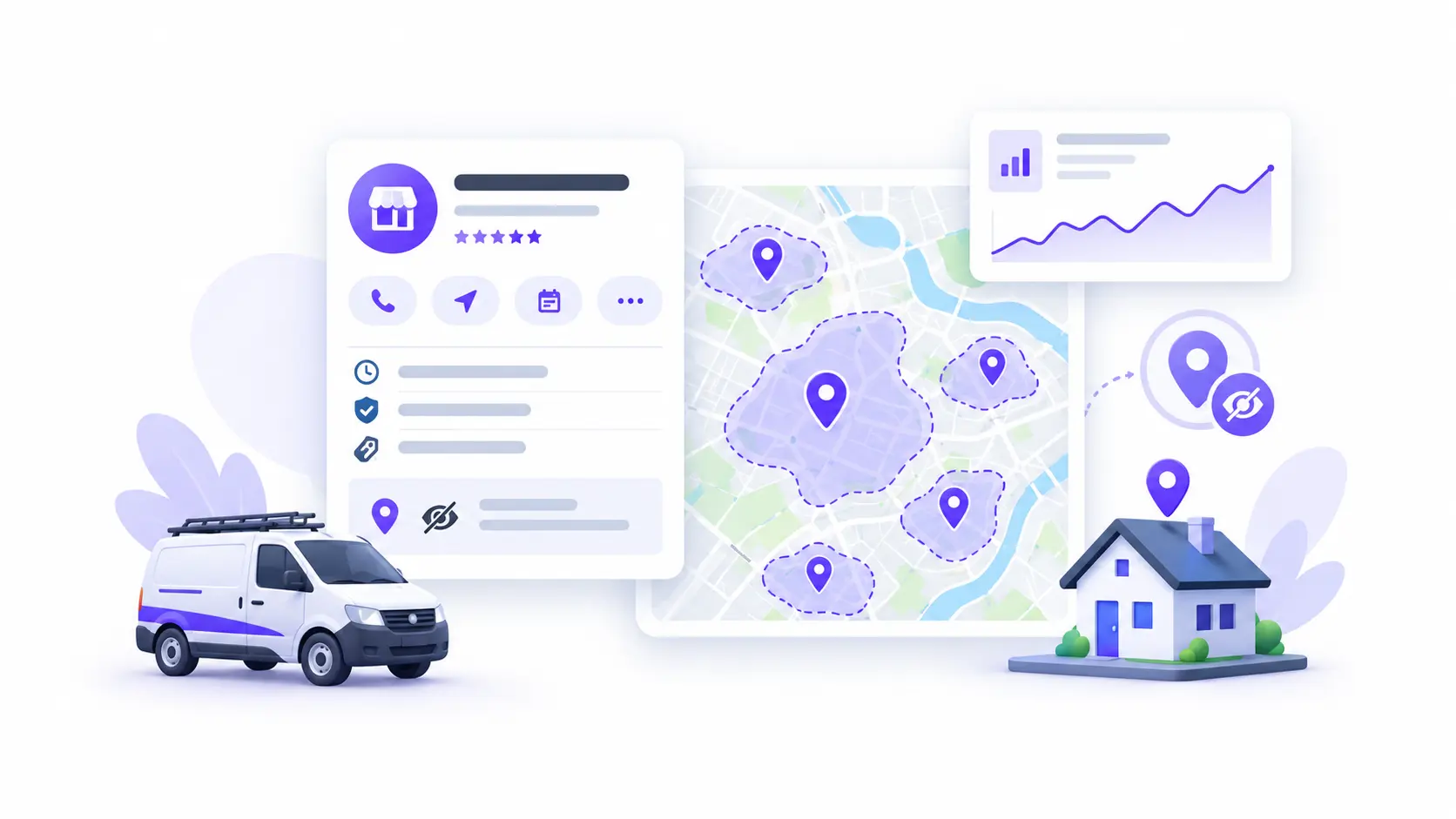
A service-area business can qualify for a Google Business Profile if it makes in-person contact with customers during its stated hours. If customers do not visit its operating address, Google requires the business to hide that address from its profile and specify the areas it serves. Understanding these rules helps you configure your profile correctly without making unsupported assumptions about local rankings.
Whether you run a plumbing company, cleaning service, HVAC business, electrical service, mobile repair business, or another eligible business that travels to customers, three decisions matter: whether your business qualifies, whether your address should be visible, and which service areas accurately represent your operations.
This guide explains Google’s requirements, how to configure your profile, common mistakes to avoid, and what service-area settings can realistically accomplish for your local search visibility.
What Is a Service-Area Business on Google?
A service-area business is a business that visits customers at their locations rather than receiving them at its own operating address.
For example, a plumber might operate from a residential property, keep equipment at that location, and travel to customers’ homes to complete repairs. A cleaning company might organize its work from an office but deliver all its services at customers’ properties.
In these situations, customers generally need to find the business’s services and understand where it operates, not visit its operating address.
Google Business Profile allows eligible service-area businesses to describe the geographic areas they serve. However, the service-area setting does not remove the need to satisfy Google’s eligibility requirements.
Service-area business vs. storefront vs. hybrid business
The distinction between these business types determines how you should configure your Google Business Profile.
Business type | How customers receive the service | Address visibility |
Storefront business | Customers visit the business at an eligible physical location | Display the genuine business address |
Service-area business | The business travels to customers and does not serve customers at its operating address | Hide the address and specify the service areas |
Hybrid business | Customers visit an eligible physical location, and the business also travels to them | Display the eligible address and specify the service areas |
A hybrid business might be a repair shop that receives customers at a staffed workshop but also sends technicians to customers’ properties.
For a hybrid business, displaying an address requires the location to meet Google’s applicable requirements, including being staffed by the business’s team and able to receive customers during its stated hours. Permanent on-site signage is also required for a location represented as a storefront.
These distinctions come from Google’s guidelines for representing a business.
Is Your Business Eligible for a Google Business Profile?
Before choosing service areas or changing address settings, determine whether your business qualifies.
According to Google’s Business Profile eligibility guidelines, a business must make in-person contact with customers during its stated hours, subject to Google’s published exceptions.
Businesses that may qualify
Eligible businesses include genuine service providers that travel to customers to perform their work.
Examples include:
- Plumbers who visit homes to repair pipes or install equipment.
- Electricians who complete work at customers’ properties.
- HVAC contractors who install and maintain heating or cooling systems.
- Cleaning companies that provide services at residential or commercial premises.
- Mobile repair businesses that perform eligible services at customers’ locations.
The important consideration is the actual business model. Having a website, business registration, social media page, or telephone number does not, by itself, establish Google Business Profile eligibility.
Businesses that generally do not qualify
Google identifies several ineligible business situations.
Online-only businesses: A business that operates entirely online without qualifying in-person customer contact generally cannot create a Business Profile.
Lead-generation companies: A company that generates leads for other businesses, rather than operating as the eligible service provider itself, is not eligible simply because it targets local searches.
Virtual offices and remote mailboxes: Renting a mailing address without actually operating the business at that location does not make the address eligible. A remote PO box or mailbox is not an acceptable business location.
Ineligible coworking arrangements: A coworking address is not automatically eligible. Google requires a qualifying location to have clear signage, receive customers during business hours, and be staffed during those hours by the business’s own staff.
These examples are not an exhaustive eligibility test. Review Google’s current business representation guidelines if your business uses shared premises, a home office, a rented room, or another nontraditional setup.
Can you create separate profiles for different service areas?
Generally, a service-area business should use one Business Profile for its central operating location rather than create a separate profile for every city it serves.
Google allows separate profiles for distinct eligible operating locations when the applicable requirements are met, including separate staff and service areas for the respective locations.
For example, a plumbing company should not create additional profiles simply because it wants to appear in more towns. If it genuinely operates multiple qualifying locations, each location should be assessed against Google’s rules.
Creating extra profiles solely to target additional service areas is not a substitute for meeting the location requirements.
Should a Service-Area Business Hide Its Address?
If your business does not receive customers at its operating address, you should hide that address on your Google Business Profile. This includes many home-based service businesses whose owners travel to customers.
Google’s guidance is explicit: service-area businesses should hide their addresses from customers when they do not serve customers at those addresses.
When should you hide your business address?
Hide the address when customers receive the service at their own locations and do not visit your business premises.
Consider these examples:
- Home-based plumber: You organize your business from home but perform plumbing work at customers’ properties. Hide the residential address and specify your service areas.
- Cleaning company: Your team travels to customers’ homes or offices, and clients never visit your operating address. Hide that address.
- Mobile repair service: You travel to customers to perform repairs and do not receive customers at your operating base. Configure the profile as a service-area business.
The fact that you have a real operating address does not mean that address must be displayed publicly.
Your profile should represent how the business genuinely operates, rather than how you would prefer it to appear in Google Maps.
When can you display your business address?
You may display your address when customers can genuinely visit your eligible business location and the location meets Google’s relevant requirements.
A legitimate hybrid business may display its address and also specify the areas it serves.
For example, an appliance repair company with a properly staffed, customer-facing workshop might receive customers at that workshop while sending technicians to customers’ homes. If the location meets Google’s requirements, the business may qualify to display the address and configure service areas.
Do not display a residential address as a storefront merely because it is the company’s registered address. Likewise, do not use a virtual office or rented mailing address as a substitute for a qualifying business location.
Does hiding your address prevent your business from appearing on Google Maps?
No. Hiding your street address does not automatically make an otherwise eligible service-area business ineligible to appear in Google Search or Maps.
The address setting controls how the location is presented on the Business Profile. It is not a guarantee of whether or where the business will rank.
Google determines local search visibility using multiple factors, including relevance, distance, and prominence. A correctly configured profile may still have limited visibility for particular searches because of competition, search location, relevance, or other factors.
Displaying an address simply to obtain a visible map pin is not an appropriate solution if customers do not actually visit that location.
What does hiding your address protect?
Hiding an address prevents the street address from being displayed as the business’s public location on the profile under the normal service-area configuration.
However, this should not be confused with complete removal of the address from the internet.
Your address may still appear on your website, in online directories, on third-party websites, or in other public information sources. Google also explains that it can use information from your profile and other sources when determining how to display business information.
If address privacy matters, review your website and other listings separately. Do not assume that changing one Business Profile setting removes every other public reference to your address.
How to Set Up Google Business Profile Service Areas
Once you have confirmed that your business qualifies and identified the correct business type, configure its service areas to reflect where it genuinely operates.
Google’s official instructions are available in Manage your service areas for service-area and hybrid businesses.
Step 1: Open your Business Profile
Sign in with an account authorized to manage the business, then open the relevant Google Business Profile.
Make sure you are editing the correct business if you manage several profiles.
Step 2: Open the location settings
Select Edit profile, then open Location.
Find the Service area section and select its edit option. The exact interface may change, so check Google’s current instructions if the labels on your screen differ.
Step 3: Add the areas you genuinely serve
Select a suggested service area or enter a supported geographic area.
Depending on the available options, service areas may be based on cities, postal codes, or other supported areas.
Choose locations that accurately reflect your operations. Do not add places solely because you want your business to rank for searches associated with them.
Step 4: Remove areas you no longer serve
Review your existing list and remove locations where your business no longer provides services.
An outdated service-area list can mislead potential customers about your coverage. Keep the information aligned with your actual operations.
Step 5: Save the changes and check the profile
Save your changes and check that the profile reflects the intended configuration.
Google states that approved service-area edits may take up to 48 hours to appear. If the changes do not appear after that period, confirm that they were saved and consult the relevant Google support guidance.
How Many Service Areas Can a Google Business Profile Have?
Google currently allows a profile to specify up to 20 service areas.
The limit does not mean every business should use all 20 available entries. The correct number depends on the areas genuinely served and how those areas can be represented using Google’s supported geographic options.
For example, a service business that works across several neighboring towns may be able to represent its coverage with a relatively small number of suitable entries. Adding more locations is not automatically better.
Focus on accurate coverage rather than filling every available field.
Can you set your service area using a radius?
Google’s current service-area settings do not let you configure an editable radius around your business.
Instead, you must specify supported areas such as cities, postal codes, or other geographic areas.
If your previous setup used a radius, consult Google’s current instructions to understand the available settings. Do not assume you can restore or edit an older radius configuration using the current interface.
How far should your service areas extend?
Google’s guidance states that the boundaries of the overall service area should not normally extend more than approximately two hours of driving time from the business’s base. Some businesses may have appropriate reasons for serving larger areas.
This is guidance for defining the business’s coverage. It is not a promised ranking radius, nor does it mean that Google will automatically provide visibility throughout the whole area.
When choosing your coverage, consider:
- Where your team can realistically deliver the service.
- Travel time and operational capacity.
- Whether the business genuinely accepts work in those locations.
- Whether each geographic entry accurately describes the coverage you offer.
A larger service area may make sense for one business and be impractical for another. The choice should reflect how the business works in reality.
How should you choose service areas when you serve many locations?
Use this straightforward process:
- Identify your genuine operating base.
- List the locations where you currently provide services.
- Group or select areas using Google’s supported geographic options.
- Prioritize an accurate description of your coverage over maximizing the number of entries.
- Remove areas you no longer serve.
- Review Google’s geographic guidance before saving the final configuration.
Consider a hypothetical plumbing company that operates from one base and serves several nearby towns. Its service-area list should represent those genuine operations. The company should not automatically add distant towns simply because it wants to appear for more location-based searches.
The guiding principle is accuracy, not the number of locations.
Do Google Business Profile Service Areas Affect Local Rankings?
Service-area settings help communicate where your business provides services. They should not be treated as a standalone ranking strategy or a way to guarantee visibility in every selected location.
Google’s official local ranking guidance identifies three principal factors: relevance, distance, and prominence.
Understanding Google’s main local ranking factors
Relevance describes how well the Business Profile matches what someone is searching for. Accurate business information helps Google understand the business and connect it with relevant searches.
Distance refers to how far the business is from the searcher or the location associated with the search. A business’s position can vary depending on where the search originates.
Prominence concerns how well-known the business is. Google says prominence can be informed by information such as links from other websites and customer reviews, among other signals.
These factors work together. Configuring service areas correctly does not override every other consideration in local search.
Does adding more service areas automatically improve rankings?
No. Google does not publish a formula that guarantees better rankings based on the number of service areas entered.
Adding a location to the service-area field communicates that the business serves that area. It should not be interpreted as a promise that the business will rank for relevant searches throughout that location.
For example, a contractor may provide services across several towns but still have stronger visibility in some areas than others. Search location, competition, relevance, and prominence can all affect the results people see.
The practical takeaway is to maintain accurate service areas without relying on additional entries as a ranking shortcut.
What should you improve instead of simply expanding the service-area list?
Once your profile is configured correctly, assess the broader local search factors that matter to your business.
Keep business information accurate. Ensure that the profile represents your real business, its services, operating details, and contact information.
Align your website with your services. Your website should clearly explain what you do, who you serve, and what customers can expect. Make sure important service pages are accessible and useful.
Create location content only where it adds value. If your business genuinely serves multiple locations, location-specific pages can help explain availability, services, and relevant information. Avoid publishing large numbers of nearly identical pages that differ only by place name.
Evaluate Google Maps and organic search separately. Google Maps visibility and traditional organic website rankings are related, but they are not identical. Review the search results and performance information relevant to each.
Investigate before making repeated changes. If visibility is weak, assess the underlying problem rather than adding more service areas without a clear reason.
If you need broader support, explore my Google Maps SEO services or Local SEO services. These pages explain how profile configuration fits into a wider local search strategy.
Common Google Business Profile Service-Area Problems and How to Fix Them
When a profile is not behaving as expected, start by identifying the specific problem. Avoid making repeated changes before checking whether the business type, address settings, and service areas are correct.
Problem | What to check | Recommended next step |
Your address remains visible | Whether the business is configured as a service-area or hybrid business, and whether its address setting matches how customers are served | Correct the location configuration to reflect the actual business model |
You cannot enter a radius | Whether you are using Google’s current service-area settings | Choose supported geographic areas rather than trying to configure an editable radius |
Your updated service areas have not appeared | Whether the changes were saved and whether the normal processing period has elapsed | Recheck the profile and consult Google’s current guidance |
You need to represent more than 20 areas | Whether every listed location is necessary to describe your coverage accurately | Prioritize representative, supported areas instead of creating extra profiles |
Your business uses a virtual office or mailing address | Whether the location qualifies under Google’s real-world business-location requirements | Correct the location arrangement rather than using an ineligible address |
You want one profile for every city you serve | Whether the business has distinct, eligible operating locations with separate staff and service areas | Follow Google’s multiple-location requirements instead of creating profiles solely to target cities |
What if your service-area edit has not appeared?
First, confirm that you saved the change. Google says approved service-area edits may take up to 48 hours to appear.
If the change remains missing, verify that you selected supported areas and that the profile is configured correctly. Then consult Google’s current service-area management documentation.
Do not assume every issue is a processing delay. If the problem concerns eligibility, verification, or address visibility, investigate the underlying issue before attempting further changes.
What if your business moves but serves the same areas?
Your profile should reflect the business’s genuine current information.
Update the relevant address or operating information according to Google’s instructions and complete any verification steps requested. Then reassess whether the existing service areas still reflect your business’s actual coverage from its new base.
Do not retain an outdated address merely because it was used when the profile was first created. Likewise, do not assume that every service area must change simply because the operating base has moved. Review the facts and make the changes that are genuinely required.
Google Business Profile Checklist for Service-Area Businesses
Before considering your setup complete, review the following checklist.
- Eligibility: The business satisfies Google’s requirements for a Business Profile.
- Business type: The profile accurately represents a storefront, service-area, or hybrid business.
- Operating information: The information reflects the genuine business.
- Address visibility: The address is hidden when customers are not served at that location.
- Physical premises: Any displayed address meets Google’s applicable eligibility requirements.
- Service areas: The listed areas reflect actual operational coverage.
- Geographic limits: The list uses supported entries and respects the 20-area limit.
- Overall coverage: The service area has been reviewed against Google’s approximate driving-time guidance.
- Profile changes: The changes have been saved, and the public profile has been checked.
- Profile structure: The business has not created unnecessary additional profiles to target more cities.
Once these checks are complete, you have a more accurate foundation for your local search efforts.
Remember, correct configuration helps your business represent itself appropriately. It does not guarantee rankings, calls, or leads.
Conclusion: Configure Your Service-Area Business Profile Accurately
A properly configured Google Business Profile begins with understanding how your business operates.
If your business travels to customers and does not receive them at its operating address, hide that address and specify the areas you genuinely serve. If customers visit an eligible physical location and you also travel to them, assess whether the business qualifies as a hybrid business.
Keep your service areas accurate, follow Google’s limits and guidance, and avoid creating extra profiles or expanding coverage simply to pursue additional rankings.
Once the configuration is correct, focus on the wider factors that support local visibility, including accurate business information, relevant website content, and a sound Local SEO strategy.
Frequently Asked Questions
1. Can customers still find my business on Google Maps if I hide my address?
Yes. Hiding your street address does not automatically prevent an eligible service-area business from appearing in Google Search or Maps. It changes how the address is presented on your profile. Visibility for individual searches still depends on factors such as relevance, distance, prominence, and competition, so hiding the address does not guarantee a particular ranking.
2. How long do Google Business Profile service-area changes take to appear?
Google states that approved service-area changes may take up to 48 hours to appear on your Business Profile. If the change remains missing, confirm that it was saved and review the current settings. If the issue persists, consult Google’s official service-area guidance instead of creating another profile.
3. Does hiding my business address remove it from other websites and directories?
No. Hiding your address on Google Business Profile does not remove it from your website, business directories, or other third-party pages. Review these sources separately if you have address-privacy concerns. Google may also use information from sources beyond your profile when determining how business information is displayed.
4. What should I do if my service-area edit has not appeared?
Confirm that the change was saved and allow up to 48 hours for an approved edit to appear. Then check that the selected areas and business type are correct. If the issue persists, follow Google’s current support guidance. Avoid creating duplicate profiles or repeatedly changing settings without identifying the underlying issue.
5. What should I update if my business moves but continues serving the same areas?
Update your Business Profile to reflect the business’s genuine new operating information and complete any verification steps Google requests. Reassess whether the current service areas accurately reflect your operations from the new base, and remove any areas you no longer serve. Do not retain an outdated address simply because it was used in the original profile setup.
Need Help With Your Google Business Profile?
If you are unsure whether your profile uses the correct business type, address settings, or service areas, the next step is to review the configuration against Google’s guidelines and your actual business operations.
I’m Tawhid, an SEO Expert & Consultant at Freelancer Tawhid. I work with businesses worldwide on Local SEO and broader SEO projects, with an approach focused on understanding the business, diagnosing relevant issues, and prioritizing appropriate improvements.
Explore my Google Business Profile Optimization service to learn more about the available support.
If your challenges extend beyond the profile itself, you can also explore my Local SEO services or contact me to discuss your SEO requirements.
2 Responses