How to Verify a Google Business Profile: Available Methods and Common Verification Problems

Freelancer Tawhid
SEO Expert and Consultant
- October 12, 2026
- 2 Comments
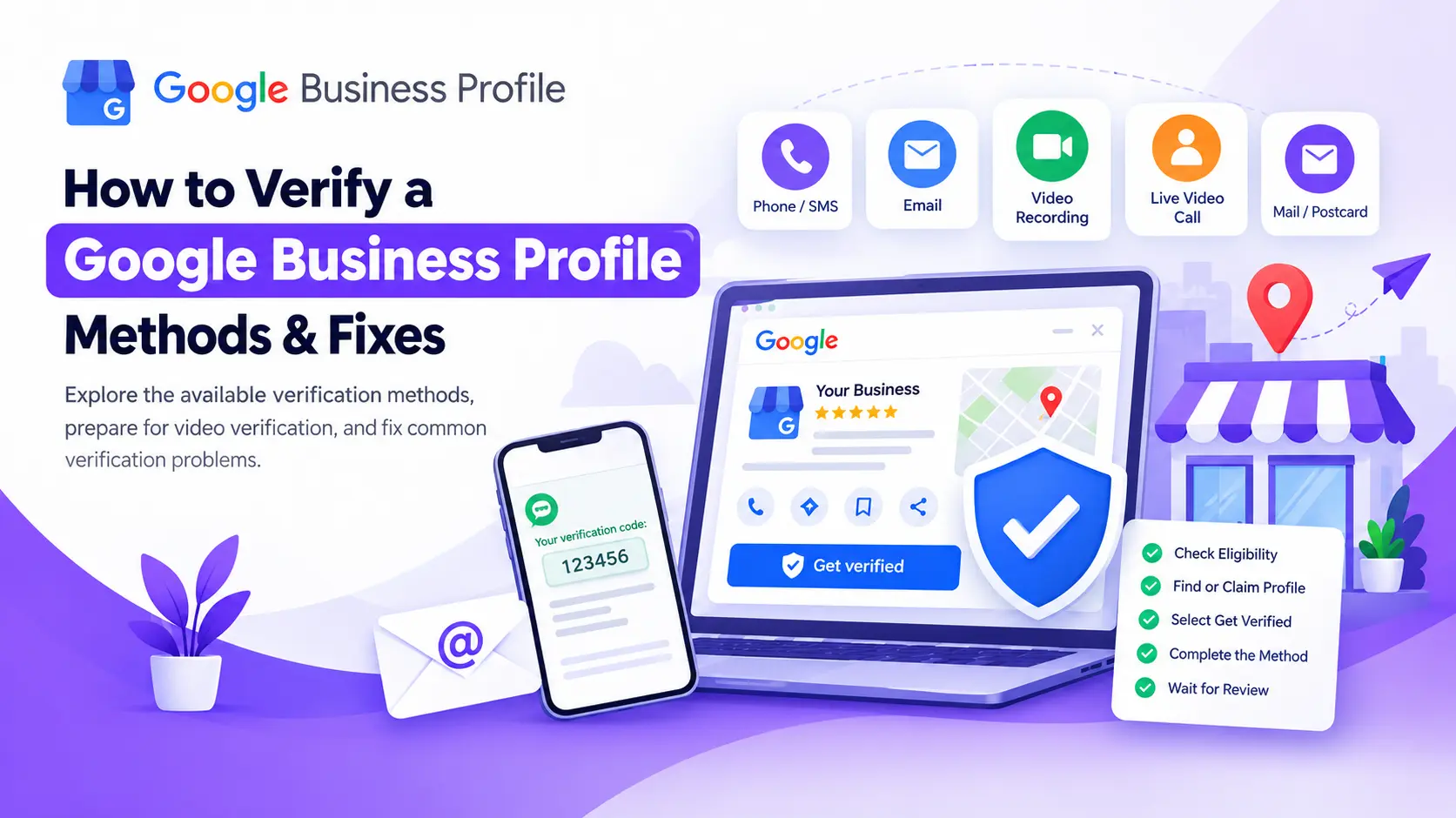
Verifying a Google Business Profile confirms that an eligible business is managed or represented by an authorized person. To complete verification, sign in to the appropriate Google Account, open your Business Profile, select Get verified, and follow one of the methods Google offers. The available options vary by business, and some profiles require additional verification.
Whether you are setting up a new profile, claiming an existing listing, or trying to resolve a failed verification, understanding the available methods and their requirements can help you avoid unnecessary delays.
This guide explains how Google Business Profile verification works, how to complete the available verification methods, what to prepare before recording a verification video, and how to troubleshoot common problems.
1. What to Check Before Verifying Your Google Business Profile
Before starting verification, confirm that your business is eligible, that you are using the correct Google Account, and that your business information is accurate.
These checks can help you identify problems before they delay the verification process.
Check Whether Your Business Is Eligible
Not every business qualifies for a Google Business Profile.
According to Google’s Business Profile eligibility and ownership guidelines, eligible businesses generally need to make in-person contact with customers during their stated business hours, subject to Google’s specific exceptions.
Eligible business types can include:
- Storefront businesses: Businesses that serve customers at a physical location with appropriate signage.
- Service-area businesses: Businesses that travel to customers rather than serving them at their business address, such as plumbers or electricians.
- Hybrid businesses: Businesses that serve customers at their premises and also visit customers or deliver services elsewhere.
Online-only businesses that do not meet Google’s eligibility requirements cannot become eligible simply by choosing a different verification method.
For service-area businesses, an important distinction is that you should not display your business address on your profile if you do not serve customers at that address. Configure the profile to reflect how the business actually operates.
Review Google’s eligibility guidelines before continuing if you are unsure whether your business qualifies.
Find or Claim the Correct Business Profile
Sign in to the Google Account you intend to use to manage the business.
Search for your business on Google Search or Google Maps. If the business already has a profile, check whether you can claim or manage it rather than creating another listing.
There are three common situations:
- Your business does not have a profile: Add the eligible business and follow the setup instructions.
- Your business has an unclaimed profile: Claim the existing profile and proceed with verification.
- Someone else already manages your profile: Follow Google’s ownership-request process if you need access.
Creating a duplicate profile is not the appropriate solution to an ownership conflict or a verification problem.
If another person or agency manages the profile, use Google’s instructions for requesting ownership of a Business Profile where applicable.
Check Your Business Information
Before submitting verification, review your business details.
Make sure the business name accurately reflects the real-world name used by the business. Confirm that the address, business hours, service-area settings, and other details are accurate where applicable.
For a business with a physical storefront, check that any permanent signage and other identifying information are consistent with the profile.
For a service-area business, confirm that the profile reflects the actual way the business serves customers.
Do not change legitimate business information simply to try to unlock a preferred verification method. Google determines which verification options are available, and inaccurate information can create additional problems.
2. What Are the Available Google Business Profile Verification Methods?
Google determines the verification methods available for each Business Profile. The available options depend on factors such as the business type, public information, region, and opening hours. Some businesses may also be asked to complete more than one verification method.
You cannot manually force Google to display a particular option.
The following table summarizes the main methods and pathways described in Google’s current verification documentation.
Verification method | How it works | Important consideration |
Phone or SMS | Google sends a verification code through an available phone or text option. | You must be able to receive the code through the eligible number. |
Google sends instructions through the email option displayed in your profile. | You must have access to the displayed email address. | |
Video recording | You submit a recording showing evidence of your business and your authority to manage it. | The video must follow Google’s recording, evidence, and submission requirements. |
Live video call | You show relevant business evidence to a support representative during a live call. | Availability varies, and calls are only available during the location’s opening hours. |
Mail or postcard | Google sends a verification code to the eligible business address. | This option is not available to every profile, and codes expire. |
Conditional instant or bulk verification | Certain eligible profiles may be verified through supported automatic or bulk processes. | These are conditional pathways, not universal options that every business can select. |
For the latest instructions, consult Google’s official guide to verifying your business on Google.
Phone or SMS Verification
Phone or text verification is a convenient option when Google offers it for your profile.
To complete this method:
- Open your Business Profile and select Get verified.
- Choose the available phone or SMS option.
- Answer the eligible business phone call or open the text message.
- Enter the verification code in the profile as instructed.
Before starting, make sure you can access the phone number displayed in the verification process.
Google notes that interactive voice response systems may not receive verification codes. If your business uses an automated phone system, check that the verification call or message can reach you as required.
If the option is unavailable, you cannot simply replace it with another phone number to force Google to provide phone verification. Review the methods currently offered in your profile.
Email Verification
Email verification is available when Google displays it as an option.
The process is straightforward:
- Open the correct Business Profile.
- Select Get verified and choose the available email option.
- Follow the instructions sent to the displayed email address.
- Complete the verification process as directed.
Make sure you can access the email address shown on the verification screen. If the expected message does not appear, check the relevant inbox folders and confirm that you are following the correct instructions.
If you cannot access the displayed address, review Google’s available support options rather than assuming that another email address will automatically be accepted.
Video Recording Verification
With video recording verification, you provide evidence that the business exists, operates where claimed, and is managed or represented by an authorized person.
Google may request different evidence depending on whether the business is a storefront, a service-area business, or a hybrid business.
The recording must meet specific technical requirements, so preparation is important. The complete requirements and recording checklist appear later in this guide.
Read Google’s official video verification instructions before recording.
Live Video Call Verification
A live video call is different from submitting a recording.
During the process, you connect with a support representative and use your device’s camera to show the relevant business location, equipment, and evidence of your authority to manage the business.
Before starting, prepare to show:
- Your business location and relevant surrounding identifiers.
- The business, products, tools, or equipment used to serve customers.
- Evidence of authorized management, such as access to appropriate business-only areas.
Have a suitable device ready and make sure you are available during the location’s opening hours.
Live video verification is not available to every business. Follow the options displayed in your own profile.
Mail or Postcard Verification
If Google offers mail verification, you can request a code to confirm the business address.
The process generally involves:
- Opening your Business Profile and selecting Get verified.
- Choosing the available postcard or mail option.
- Checking that the business postal address is correct.
- Requesting the code and waiting for it to arrive.
- Entering the code in the profile according to Google’s instructions.
Google states that most verification codes arrive within 14 days. However, delivery times can vary.
Important: Do not edit your business name, address, or category while waiting for the code. These changes can invalidate the code that was sent. Requesting a replacement code also invalidates the earlier one and may lengthen the process.
Verification codes expire after 30 days.
Google also explicitly instructs users to keep their verification codes secure and never share them with anyone, including people who manage their profiles. Google will not ask you to share your verification code.
Automatic and Bulk Verification
Some profiles may qualify for instant verification through supported processes, including certain cases involving Google Search Console website verification. Eligible businesses managing multiple locations may also be able to use bulk verification.
These possibilities should not be confused with universal verification options.
Adding a website to Search Console does not guarantee that every Business Profile will be verified instantly. Similarly, bulk verification has eligibility requirements and is not necessarily appropriate for a business with only one location.
If your profile does not offer an automatic verification pathway, follow the methods Google provides.
3. How to Verify Your Google Business Profile Step by Step
Once you have confirmed eligibility and prepared the correct business information, follow this process.
Step 1: Sign In to the Correct Google Account
Open the Google Account associated with the business or intended profile management.
If you manage multiple businesses, confirm that you are working with the correct profile before continuing.
Step 2: Find or Claim Your Business Profile
Search for the business on Google Search or Google Maps.
If the profile already exists, follow the relevant claiming or ownership instructions. If it does not exist, add the eligible business according to Google’s setup guidelines.
Avoid creating another profile simply because you cannot immediately verify the existing one.
Step 3: Select Get Verified
Open the correct profile and look for Get verified.
Google will display the methods available for that business. Review the instructions and select an offered method.
If the method described in an older tutorial does not appear in your account, that does not automatically mean your profile is broken. Google determines availability based on the circumstances of the business and profile.
Step 4: Complete the Selected Method
Follow the method-specific instructions.
For phone or email verification, make sure you can access the required communication channel.
For video verification, prepare the relevant evidence and record the video according to Google’s requirements.
For mail verification, double-check the address before requesting the code and avoid changes that could invalidate it.
Do not assume that submitting information means verification is complete. Wait for Google’s confirmation or review the instructions displayed in the profile.
Step 5: Wait for the Verification Review
Google states that verification reviews generally take up to five business days, although they may occasionally take longer.
During this period, monitor your profile for confirmation, requests for additional information, or notifications explaining why verification was unsuccessful.
If Google identifies a problem, address the specific issue rather than repeatedly submitting the same information.
4. How to Prepare for Google Business Profile Video Verification
Video verification deserves special attention because the recording must demonstrate specific evidence.
According to Google’s video verification documentation, the video should help establish the business’s location, existence, and management authority.
Understand the Video Requirements
Your verification video must be:
- Unique and unedited.
- Complete, with no breaks in the recording.
- At least 30 seconds long.
- Recorded live rather than created from pre-recorded footage.
- Recorded and uploaded using a mobile device through your Business Profile.
You cannot record the video offline and upload it later.
The recording must not include sensitive details such as bank account, tax, or identification numbers. It must also avoid private information about you or other people and must not include other people’s faces.
Plan the recording before you begin. The goal is to capture the required evidence clearly in one continuous recording, not to produce a promotional video.
What Evidence Should the Video Show?
Google’s requirements fall into three main categories.
- Evidence of location
Show information that helps establish where the business operates. Depending on the business, this might include street signs, building numbers, nearby businesses, or recognizable surroundings.
- Evidence that the business exists
Show the actual premises, business signage, workspace, products, tools, or equipment relevant to the business.
- Evidence of management authority
Show that you manage or represent the business. Appropriate examples may include accessing business-only areas, using relevant equipment, unlocking a business vehicle, or showing suitable non-sensitive business documents.
The appropriate evidence depends on the actual business. Do not stage a misleading scene or show facilities, signage, or equipment that do not belong to the business.
What Should Storefront Businesses Show?
A storefront or hybrid business should focus on evidence of its physical location and operation.
Useful evidence may include:
- Street signs or nearby landmarks that help identify the location.
- The storefront, showroom, or business premises.
- Permanent signage showing the business name, consistent with the name on the profile.
- Appropriate evidence that the person recording manages or represents the business, such as access to a business-only area or equipment.
For example, a retail business may show the surrounding street, its permanent shop sign, and an appropriate business-only area.
The recording should establish a clear connection between the business, its location, and the person submitting the verification.
What Should Service-Area Businesses Show?
A service-area business travels to customers or performs work without serving customers at its business address.
A plumber, electrician, or similar service provider may need to demonstrate:
- The relevant operating location through identifiable signs or nearby landmarks.
- The existence of the business through genuine work tools, equipment, products, or an appropriate workspace.
- Management authority through relevant business access, performing a service, or suitable non-sensitive documentation.
For example, a plumber might show identifiable surroundings, actual plumbing equipment, and access to a work vehicle with genuine business branding.
These are illustrative examples, not a guarantee that a particular video will be approved.
If the business operates from home and does not serve customers at that address, the address should not be displayed publicly on the Business Profile. Follow Google’s current service-area business requirements.
Common Video Verification Mistakes
Avoid the following problems when preparing your recording:
The business name is missing or inconsistent. If the method requires permanent signage, make sure the relevant business name is visible and matches the profile.
The location cannot be identified. Include useful location evidence rather than filming only close-ups of tools or equipment.
There is no evidence of management authority. Showing the business alone may not establish that you are authorized to manage or represent it.
The video is edited or interrupted. Record one complete, unedited video that meets Google’s minimum duration and submission requirements.
The video contains sensitive or private information. Prepare the space and recording path beforehand to avoid exposing confidential material or other people’s faces.
The recording does not fit the business type. A storefront and a service-area business have different evidence requirements. Plan your recording accordingly.
A useful preparation checklist is to confirm your location evidence, business evidence, management evidence, recording continuity, minimum duration, and privacy requirements before uploading.
5. Common Google Business Profile Verification Problems and How to Fix Them
A verification problem does not always mean the profile itself is ineligible. It may involve the available verification options, an inaccessible communication channel, missing video evidence, an expired code, or a separate ownership issue.
Use the following table to identify the appropriate next step.
Problem | What to check | Recommended next step |
Your preferred method is missing | Google determines available methods for each profile. | Use an available method or follow Google’s support guidance if none works. |
The phone or SMS code does not arrive | Confirm access to the displayed phone number and check the method’s requirements. | Follow the on-screen instructions and contact support if the problem remains unresolved. |
The email does not arrive | Check the email address displayed in the verification process and the relevant inbox folders. | Follow Google’s instructions for the available email method. |
The postcard has not arrived | Check the address and remember that most codes arrive within 14 days. | Follow the current guidance. Avoid requesting a replacement prematurely. |
The postcard code is invalid or expired | The code may have expired or been invalidated by a new request or certain profile edits. | Review the current profile instructions and request another code when appropriate. |
Your verification video is rejected | Review the specific issues Google identifies. | Select Review issues, correct the missing evidence, and record a new video. |
Your video will not upload | Check whether the upload failed and whether the video meets the requirements. | Retry the upload and follow any error-specific instructions. |
The live video call is unavailable | The method might not be offered, or the call may be outside the location’s opening hours. | Check the available methods and current support options. |
The Get verified button appears again | Google may not have completed verification or may require you to re-verify. | Follow the current re-verification instructions. |
Another account controls the profile | This may be an ownership conflict rather than a verification problem. | Follow Google’s ownership-request process instead of creating a duplicate listing. |
Your business appears ineligible | The business may not meet Google’s eligibility criteria. | Review the eligibility guidelines before trying another method. |
Your profile has been suspended | Suspension requires a different resolution process from ordinary verification. | Follow Google’s suspension-related instructions and applicable appeal process. |
Fix a Rejected Verification Video
If Google rejects your video, it may provide a Review issues notification explaining why the recording was not accepted.
Follow this process:
- Open your Business Profile on the appropriate mobile device.
- Select Review issues when the option is displayed.
- Read the feedback and identify the missing or insufficient evidence.
- Plan a new recording that addresses the specific problem.
- Include all previously required evidence as well as the missing information.
- Record and submit the new video according to Google’s instructions.
For example, if the feedback indicates that your business name was not visible, correct the relevant part of the recording. If it identifies missing evidence of management authority, prepare an appropriate way to demonstrate that authority.
Do not simply resubmit the same video without addressing the stated problem.
Google provides further instructions in its official video verification guide.
Fix a Missing Phone or Email Verification Code
First, confirm that you selected the correct profile and can access the communication channel shown in the verification process.
For phone or SMS verification, make sure the number is accessible and that the verification call or message can be received. Automated interactive voice-response systems may not receive Google’s code.
For email verification, confirm that you can access the displayed email address and check the relevant inbox folders.
If these checks do not resolve the problem, follow the support instructions displayed in your profile. Do not repeatedly request verification without understanding the current status and available next steps.
Fix a Missing or Invalid Postcard Code
If you choose postcard verification, check the address before requesting the code.
Google says most codes arrive within 14 days. Delivery may vary, so do not assume a postcard is lost immediately.
While waiting, avoid changing the business name, address, or category, because these edits can invalidate the code. Do not request a new code unnecessarily: Google invalidates the previous one when a replacement is requested.
Once the postcard arrives, enter the code according to the instructions in your profile. Remember that codes expire after 30 days.
If the code has expired or become invalid, follow Google’s current instructions to continue verification.
What If Get Verified Appears Again?
If Get verified appears on a profile again after you attempted verification, Google says it was unable to complete the process successfully.
Open the profile and follow the re-verification instructions. If multiple options are shown, you may be able to try another available method.
Google may also request additional information when certain business details have recently changed.
Avoid assuming that every repeated verification request has the same cause. Review the specific message associated with your profile and respond accordingly.
What If Someone Else Owns Your Business Profile?
If an existing profile is controlled by another person or account, the problem may be ownership-related.
Do not create a duplicate profile to bypass the issue.
Instead, use Google’s ownership-request guidance to determine the appropriate procedure. The steps may differ depending on whether the current owner can be contacted and how the profile is managed.
If an agency or former employee controls the listing, seek proper management access or ownership through Google’s supported process.
When Should You Contact Google Business Profile Support?
Consider contacting support when:
- None of the verification methods offered in your profile resolves the issue.
- A verification process remains unsuccessful after you follow the relevant instructions.
- Google requests additional information that you cannot submit through the normal workflow.
- An ownership conflict cannot be resolved through the standard process.
Start with the Google Business Profile Help Center.
If the profile is suspended, use the appropriate suspension-resolution process rather than treating the problem as a routine verification failure.
A legitimate SEO professional can help review business information, explain the available process, and identify inconsistencies. However, no consultant can guarantee approval or legitimately bypass Google’s requirements.
Protect Your Verification Code and Profile Access
Keep your verification code private. Google explicitly says not to share it with anyone, including people who manage your Business Profile, and states that it will never ask you to share the code.
If an SEO professional or agency helps with the process, work with the business owner and use Google’s authorized access arrangements. The owner should retain appropriate control over the business profile.
Be cautious of anyone promising guaranteed verification, offering unofficial shortcuts, or requesting your verification code outside Google’s process.
6. What Happens After Your Google Business Profile Is Verified?
After successful verification, Google will provide confirmation, generally through email. The authorized owner or manager can then manage the profile according to the access permissions assigned to their account.
Verification is an important foundation for managing your business information, but it is not the same as optimizing the profile for local search.
Does Verification Automatically Improve Google Maps Rankings?
No. Verifying a Google Business Profile does not guarantee a higher Google Maps ranking, a particular search position, or an immediate increase in customer inquiries.
Verification establishes the ability to manage an eligible profile. Local SEO involves a broader set of considerations, including the relevance and accuracy of the business information, the website, and the competitive context of local search.
Businesses should therefore treat verification as a necessary management step where required, not as a complete ranking strategy.
What Should You Check After Verification?
Once your profile is verified, review the information customers will see and make sure it accurately represents the business.
Check the business details. Confirm the name, contact information, hours, and other applicable details.
Review categories and services. Make sure they accurately describe what the business offers.
Check the address and service area. Ensure the profile reflects how customers interact with the business and follows Google’s guidelines.
Review your website. Make sure it supports the business information in the profile and gives customers a useful next step.
Maintain the profile. Keep information current and manage genuine customer reviews and appropriate business updates.
These activities belong to ongoing profile management and wider Local SEO, not to the verification process alone.
If you want to improve the completeness and management of your listing after verification, explore my Google Business Profile Optimization service.
For broader improvements involving the website and local search presence, my Local SEO services provide the wider context.
7. Frequently Asked Questions About Google Business Profile Verification
Can I Choose My Google Business Profile Verification Method?
No. Google automatically determines which verification methods are available for each profile. The options may depend on your business type, public information, region, or opening hours. You cannot force Google to provide a particular method. Review the options displayed in your profile and complete an available one.
How Long Does Google Business Profile Verification Take?
Google states that verification reviews generally take up to five business days, although some may take longer. If you use postcard verification, most codes arrive within 14 days. Codes expire after 30 days, and certain profile edits or requesting a replacement can invalidate a code already sent.
Why Does the Get Verified Button Appear Again After Verification?
The button can reappear when Google has not been able to complete verification successfully. Google may also request additional verification after certain business information changes. Open your profile, review the current instructions, and follow the appropriate re-verification process rather than repeatedly submitting the same information.
Does Verifying a Google Business Profile Guarantee Better Google Maps Rankings?
No. Verification establishes the ability to manage an eligible Business Profile, but it does not guarantee better Google Maps rankings or a specific search position. After verification, make sure your profile accurately represents your business and evaluate your wider Local SEO strategy, including relevant website and profile improvements.
Can an SEO Agency Verify a Google Business Profile for a Client?
An authorized SEO agency can assist with the verification process, but Google requires representatives to work directly with the business owner and obtain permission. The owner should retain appropriate control of the profile and must not share verification codes with the agency. Use Google’s supported ownership and manager-access arrangements for ongoing assistance.
Conclusion: Verify Your Profile Correctly Before Focusing on Optimization
Verifying a Google Business Profile starts with confirming eligibility, finding the correct profile, and following one of the methods Google offers. Each method has its own requirements, and the available options vary between businesses.
If verification fails, identify the specific problem before trying again. Check the code or address requirements, review any video rejection feedback, and use Google’s official support or ownership process when the issue requires it.
Once verification is complete, make sure your profile accurately represents your business and supports your wider local search presence.
If your next priority is improving your profile’s accuracy, completeness, and overall optimization, explore my Google Business Profile Optimization service. For a broader assessment of your website and local visibility, visit my Local SEO service page.
The right next step depends on whether you need to resolve a verification issue or improve your visibility after verification. Address the immediate problem first, then build a sustainable strategy around accurate business information and useful customer experiences.
2 Responses