
How to Measure Google Business Profile Performance: Searches, Calls, Website Clicks, and Directions

Freelancer Tawhid
SEO Expert and Consultant
- October 12, 2026
- 4 Comments
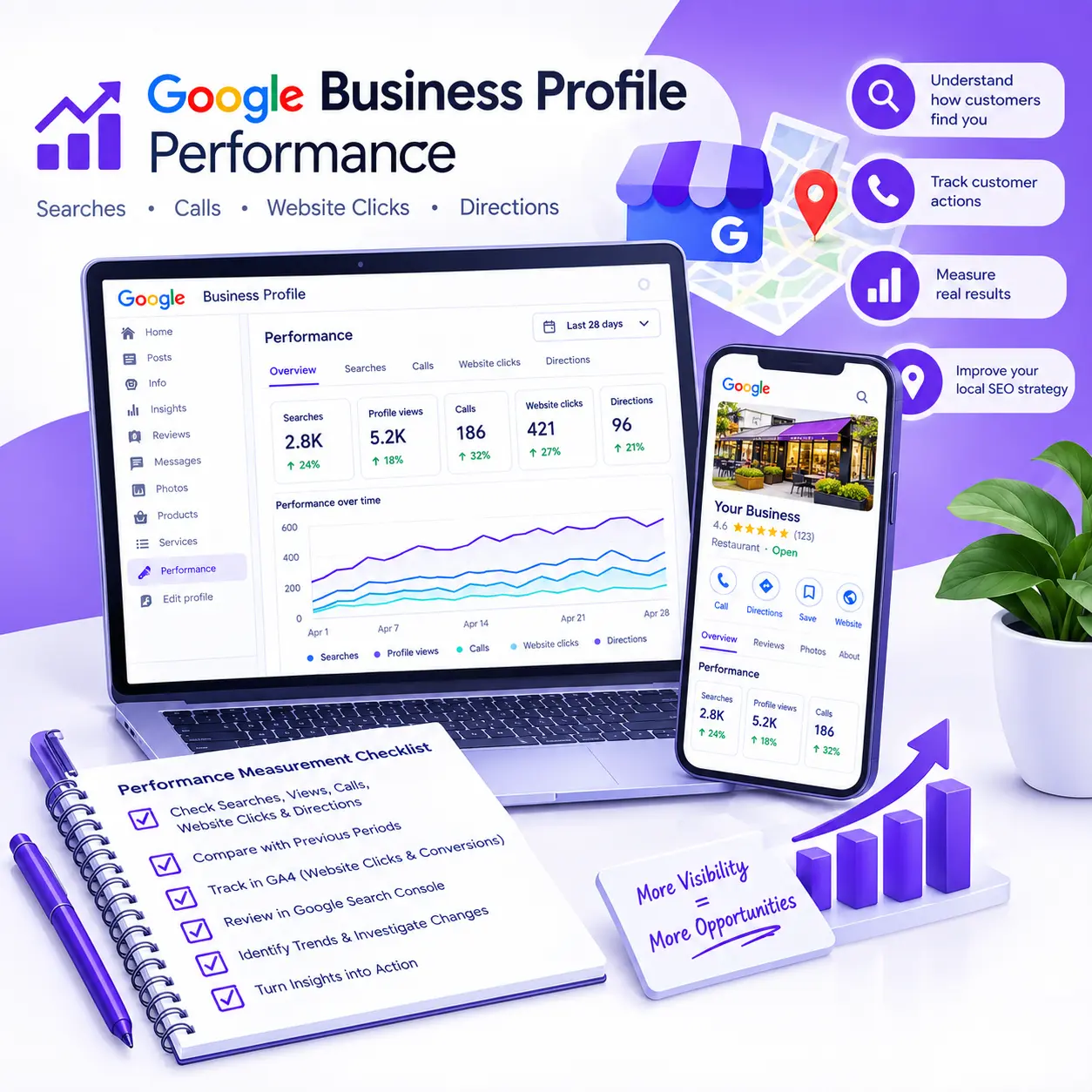
Measuring Google Business Profile performance involves more than checking whether your numbers are increasing. You need to understand how customers find your profile, which actions they take, and whether those interactions lead to meaningful business outcomes.
Google’s Performance report provides information about searches, profile views, calls, website clicks, and direction requests, depending on your business and the metrics available to your profile. By comparing consistent reporting periods and combining this data with Google Analytics 4 (GA4) and actual lead records, you can make more informed decisions about your local search strategy.
In this guide, you’ll learn how to access your Google Business Profile performance data, understand each metric, measure changes over time, identify potential problems, and connect profile activity with enquiries and conversions.
What Is Google Business Profile Performance?
Google Business Profile Performance is a reporting feature that helps business owners and managers understand how people discover and interact with their profiles across Google Search and Google Maps.
The report provides information about search terms, profile views, and available customer interactions. Depending on your profile and business type, you may also see metrics such as calls, website clicks, directions, messages, bookings, or other interactions.
The purpose is to understand how people engage with your business on Google and identify opportunities to investigate or improve your online presence.
However, profile interactions and actual business results are not the same thing. A call-button click does not necessarily represent an answered phone call, and a direction request does not confirm that someone visited your business.
For an accurate interpretation of the data, start with Google’s official Business Profile performance and insights documentation.
How to Access Your Google Business Profile Performance Report
You must have a verified Business Profile and be signed in to the Google Account associated with it to access performance data.
Method 1: Check Performance through Google Search
Follow these steps:
- Sign in to the Google Account connected to your Business Profile.
- Open your Business Profile through Google Search or the Business Profile management interface.
- Select Performance.
- Choose the reporting period you want to analyze.
- Apply the date range and review the metrics available for your profile.
The report may display different metrics depending on the business and reporting context.
Method 2: Check Performance through Google Maps
You can also access performance data through the Google Maps mobile app.
- Open Google Maps while signed in to the appropriate account.
- Tap Business.
- Find the Performance section and select See more.
- Choose your reporting period.
- Apply the date range and review your available metrics.
Google may update its interface, so the exact labels or navigation steps can change.
How to Download Performance Data
If you manage several Business Profiles, Google provides an option to download performance data through Business Profile Manager.
You can select the relevant profiles, choose the reporting period, and download a report for analysis in a spreadsheet. This is useful for comparing locations, maintaining monthly records, and creating a consistent reporting process.
For the latest instructions, consult Google’s official guide to Business Profile performance.
What Do Google Business Profile Performance Metrics Mean?
Before deciding whether your profile is performing well, you need to understand what each metric actually measures.
Performance metric | What it measures | What it does not prove |
Searches and search terms | The search terms people used to find your business profile | Exact ranking positions or total market search volume |
Profile views | The people who viewed your profile on Google Search and Maps, according to Google’s counting rules | Every impression your listing received in search results |
Calls | Clicks on the call button on your Business Profile | Completed conversations, qualified leads, or sales |
Website clicks | Clicks on the website link in your Business Profile | The number of website sessions, enquiries, or customers |
Direction requests | Requests for directions to your business | Confirmed visits or purchases |
Google explains these definitions in its Business Profile performance documentation.
Let’s examine the most important metrics and how to interpret them.
1. Searches: How Are People Finding Your Business?
The Searches metric shows the search terms people used when finding your Business Profile.
These terms can help you understand the kinds of searches associated with your business and whether the available query data appears relevant to your products or services.
For example, a plumbing business might find relevant search terms related to plumbing repairs, emergency plumbing, or other services it provides. These are illustrative examples, not actual search data from a business.
Review your available terms to identify:
- Queries that reflect your main services or products.
- Search terms associated with relevant customer needs.
- Potential gaps between the services you offer and the searches appearing in your report.
- Terms that may warrant further keyword research or website content analysis.
However, the Searches metric has important limitations.
It is not a complete keyword database, a direct measure of total search demand, or a precise Google Maps ranking report. Google also states that search queries appear when a Business Profile is shown for a particular search; businesses cannot directly control those queries.
Important: Google updates the Searches metric at the beginning of each month, and it may take up to five days to appear. Before concluding that your data is missing or that visibility has declined, check the reporting period and allow for the normal update window.
If your available search terms suggest that you’re attracting the wrong audience, further investigation may involve reviewing your profile information, understanding customer intent, and conducting local keyword research.
2. Calls: Are People Trying to Contact Your Business?
The Calls metric measures how many times customers clicked the call button on your Business Profile.
This can be useful for businesses that depend on phone enquiries, appointments, bookings, or direct customer communication.
However, a call-button click does not prove that a phone conversation occurred.
For example, someone might click the button and cancel before completing the call. Another person might call but fail to reach your business. Some enquiries may be irrelevant or unrelated to your main services.
To understand the actual value of these interactions, compare GBP call clicks with appropriate business records.
Review:
- Incoming calls recorded by your phone system.
- Answered and missed calls.
- Relevant versus irrelevant enquiries.
- Qualified leads and appointments.
- Bookings, completed jobs, or sales where those records are available.
If you use a call-tracking solution, make sure it is configured appropriately and does not interfere with your Business Profile information or reporting.
The goal is to distinguish interest in contacting your business from verified phone leads.
3. Website Clicks: Are People Visiting Your Website?
The Website clicks metric measures how many times people clicked the website link on your Business Profile.
This matters because customers may use your profile to discover a business and then visit its website to learn more about its services, explore products, compare options, or contact the business.
For example, someone might discover a service provider through Google Maps, click the website link, review the service page, and submit a contact form.
GBP Performance can show the website-link click, but it cannot independently confirm every subsequent step on the website.
To understand what happens after the click, combine your GBP data with website analytics.
You can investigate:
- Whether the tagged website traffic appears in GA4.
- Which landing pages visitors access.
- Whether they engage with relevant content.
- Whether configured contact forms, booking events, or other conversions occur.
- Whether the resulting enquiries are relevant to the business.
Keep in mind that a GBP website click and a GA4 session are different measurements. They may not match exactly because they represent different events and depend on how each platform records activity.
The following section explains how to connect these measurements.
4. Direction Requests: Are People Considering Visiting Your Location?
Direction requests show how many people requested directions to your business through Google.
This metric can be useful for businesses where customers physically visit a location, such as retail stores, restaurants, and other eligible businesses.
An increase in direction requests may indicate growing interest in reaching your location. However, it should be treated as a potential visit signal rather than confirmed evidence of foot traffic.
Google has adjusted how it counts direction requests to account for factors such as multiple taps, cancelled requests, and spam.
To interpret the metric more accurately, consider comparing it with other available records, such as:
- Appointment or booking records.
- Point-of-sale transactions.
- Customer visit records, where collected appropriately.
- Relevant changes to operating hours or location information.
Not every business has access to reliable physical-visit data, and not every direction request can be connected to an identified customer.
If direction requests are increasing, investigate whether the trend aligns with other evidence of business activity. Avoid assuming that more requests automatically mean more visits or revenue.
5. Profile Views and Total Interactions: Understanding the Context
Profile views provide additional context for interpreting calls, website clicks, and direction requests.
If more people view your profile, you may see opportunities to generate additional customer actions. However, greater visibility does not guarantee more relevant enquiries or sales.
Google’s view metric follows its own counting rules. It counts profile viewers rather than every time the business appears across Google, and the same person is not counted repeatedly on the same day.
Total interactions can also be useful, but they should not replace individual metric analysis. Different businesses have different goals, and not every available interaction is equally important.
For a service business that relies on phone enquiries, calls and qualified leads may be more useful measures than direction requests. For a physical store, direction requests and actual transaction records may be more relevant.
Always interpret the numbers in the context of your business model.
How to Measure Google Business Profile Performance Step by Step
Checking the report is only the beginning. A consistent measurement process helps you identify meaningful trends, investigate problems, and avoid making decisions based on isolated numbers.
Step 1: Establish a Performance Baseline
Before making substantial changes to your Business Profile or beginning an optimization initiative, record the current performance data.
Capture the metrics available to your profile, including searches, views, calls, website clicks, and direction requests.
Also record the reporting period and any relevant business circumstances.
For example, note whether the business recently changed its operating hours, updated its website, launched a promotion, or altered important profile information.
A baseline provides a reference point for evaluating what happens afterward. Without one, it becomes more difficult to distinguish meaningful changes from normal variation.
Step 2: Choose Comparable Reporting Periods
Select reporting periods that make sense for your business and your analysis.
You might compare:
- The current month with the previous month.
- Equivalent periods with the same number of days.
- The current period with the corresponding period last year when seasonality matters.
- Performance before and after a specific change, provided the periods are reasonably comparable.
Avoid comparing dissimilar periods and interpreting every difference as an optimization result.
For example, a business experiencing seasonal demand may naturally receive different numbers of calls or direction requests at different times of the year. A short promotion can also create a temporary increase in activity.
The more comparable your periods are, the easier it becomes to interpret changes responsibly.
Step 3: Record or Export the Metrics
Maintain a spreadsheet that records the principal metrics and their reporting periods.
A simple monthly report might include the following fields:
Field | What to record |
Reporting period | Start and end dates |
Searches | Current reported value |
Profile views | Current reported value |
Calls | Call-button clicks |
Website clicks | Website-link clicks |
Direction requests | Reported direction requests |
Website outcomes | Relevant GA4 conversions or enquiries, if measured |
Verified business outcomes | Qualified leads, bookings, or sales where available |
Notes | Profile changes, campaigns, unusual events, or reporting limitations |
For multiple locations, record each profile separately. This helps reveal whether an overall change is driven by one location or appears across several profiles.
Remember that metrics may be unavailable for some profiles and reporting periods. Record unavailable data accurately rather than treating it as a confirmed zero.
Step 4: Record Important Changes
A performance report becomes more useful when you can see what changed during the same period.
Record significant updates such as:
- Business Profile information changes.
- Changes to the linked website URL.
- Opening-hour adjustments.
- Changes in service or product information.
- Promotions and advertising campaigns.
- Website updates or changes to contact forms.
- Major changes in business operations.
This information helps you develop explanations for unusual patterns. It does not, by itself, prove that any particular change caused the result.
Step 5: Compare Trends Across Multiple Metrics
Avoid judging performance using a single number.
Suppose your profile views increase, but calls remain unchanged. This could mean that the additional visibility has not produced more call-button activity. It could also reflect differences in customer intent, seasonality, or other factors.
The appropriate response is to investigate the available evidence, not immediately assume that one element of the profile is responsible.
Similarly, more website clicks without more enquiries may justify examining the landing page, conversion process, analytics configuration, and relevance of the incoming traffic.
Compare the metrics together and investigate the most important unexplained changes.
Step 6: Turn the Findings Into an Action Plan
At the end of each reporting period, summarize:
- What changed?
- How significant was the change compared with the selected baseline?
- What possible explanations are supported by the available evidence?
- What additional information is needed?
- What should be investigated or improved next?
Choose actions based on the evidence and your business goals. Avoid making several unrelated changes at once when you need to evaluate the impact of a particular intervention.
A good performance report should help you decide what to investigate next, not simply describe what happened.
How to Track Google Business Profile Website Clicks in GA4
Google Business Profile Performance tells you how many times people clicked the website link on your profile. Google Analytics 4 can help you understand the activity that follows those clicks.
One practical method is to use UTM parameters on your Business Profile website URL.
Step 1: Add UTM Parameters to Your Website URL
UTM parameters are campaign-tracking values added to a URL so analytics tools can identify the traffic associated with a particular source or campaign.
Google recommends using consistent parameters, including utm_source, utm_medium, and utm_campaign. You can read its guidance in the official Google Analytics URL builder documentation.
For example, an illustrative tagged URL might look like this:
https://example.com/?utm_source=google&utm_medium=organic&utm_campaign=gbp
Replace example.com with your actual website URL.
In this example:
- utm_source=google identifies Google as the source.
- utm_medium=organic identifies the selected medium convention.
- utm_campaign=gbp separates the tagged activity into a campaign group associated with Google Business Profile.
Choose a consistent naming convention for your website and reporting needs. The exact values shown above are an example, not a mandatory configuration for every business.
For multiple locations, you can use a consistent naming pattern and distinguish profiles when you need location-level analysis.
Before publishing the tagged URL, verify that it loads the correct destination and that any redirects preserve the parameters where needed.
Step 2: Find the Tagged Traffic in GA4
After the URL is configured and GA4 is collecting data correctly, open the relevant Google Analytics property.
Navigate to the Reports section and open Acquisition, then Traffic acquisition. Review the available session source, session medium, and campaign dimensions.
Find the activity associated with your chosen UTM naming convention, such as the gbp campaign.
Reporting availability depends on your analytics configuration and the selected dimensions. UTM parameters also need to be present on the URL used by the visitor, and analytics data can be affected by consent choices, tracking implementation, and other measurement limitations.
If the campaign does not appear as expected, investigate the tagged URL, redirect behaviour, GA4 implementation, and selected reporting dimensions before assuming that no one clicked the profile link.
Step 3: Measure What Visitors Do on Your Website
Once you have identified the relevant traffic, look beyond the initial visit.
Depending on your business objectives, useful measures may include:
- Relevant landing-page activity.
- Contact-form submissions.
- Appointment or booking completions.
- Website click-to-call interactions.
- Other configured conversion events.
- Enquiries that can be reviewed for relevance and quality.
These outcomes must be measured appropriately. Installing GA4 or adding a UTM parameter does not automatically configure every conversion event.
For example, if your website contains a contact form, verify that successful submissions are recorded correctly. A button click alone may not prove that the form was submitted.
Step 4: Understand Why the Numbers May Not Match
GBP website clicks and GA4 sessions will not necessarily produce identical totals.
They measure different events, may use different counting rules, and can be affected by redirects, consent restrictions, tracking configuration, repeated actions, and other technical factors.
Use the GBP report to evaluate the profile’s website-link activity and GA4 to analyze the website traffic and behaviour that can be measured.
The goal is not to force both systems to show identical numbers. It is to understand what each system measures and use the information together.
Google Business Profile Performance vs. Google Search Console
Google Search Console and Business Profile Performance support different parts of your measurement process.
Tool | Main purpose | Useful metrics |
Google Business Profile Performance | Understand how people discover and interact with the Business Profile | Searches, profile views, calls, website clicks, directions, and other available interactions |
Google Analytics 4 | Analyze measured website traffic and on-site activity | Sessions, traffic sources, engagement, configured events, and conversions |
Google Search Console | Understand how the website performs in Google Search results | Website clicks, impressions, CTR, average position, queries, and pages |
Google Search Console’s Performance report helps you evaluate how your website appears in Google Search and which queries and pages generate visibility and clicks. See the official Search Console Performance report documentation.
Do not treat GBP search terms and Search Console queries as interchangeable datasets.
For example, a search term associated with your Business Profile does not necessarily correspond to a click on your website. A Search Console query measures the website’s own search-result performance and has different reporting rules.
Using both sources can help you evaluate your broader organic search presence without confusing profile activity with website search performance.
How to Interpret Google Business Profile Performance Trends
Metrics become more valuable when you know how to investigate the patterns they reveal.
The following examples are diagnostic starting points, not universal explanations.
Observed pattern | Possible explanations | What to investigate |
Profile views increase, but calls remain flat | Additional visibility may not be generating more call-button activity | Search-term relevance, customer-facing information, operating hours, contact options |
Website clicks increase, but GA4 activity appears low | Traffic attribution or website measurement may need investigation | UTM parameters, redirects, analytics configuration, consent-related measurement limitations |
Call clicks increase, but qualified leads do not | Calls may be missed, irrelevant, or unsuitable for the business | Phone logs, answered calls, enquiry quality, service information |
Direction requests increase, but verified visits do not | Requests may not have resulted in completed visits | Bookings, visit records, transactions, opening hours |
Searches or views decline | Demand, competition, seasonality, profile changes, or reporting differences may contribute | Comparable dates, available search terms, profile status, recent changes |
Search terms appear irrelevant | Some profile appearances may not align well with the business’s intended audience | Profile information, category and service relevance, website alignment, keyword research |
When Is an Increase in Searches or Views Meaningful?
An increase can indicate more reported search activity or profile engagement, but it does not automatically demonstrate better business performance.
The next question is whether the additional activity is relevant to the business.
If searches and views increase while qualified enquiries remain unchanged, look at the customer actions, search-term relevance, and available conversion data before deciding whether the change is beneficial.
Likewise, a profile that generates fewer interactions can still be valuable if those interactions are more relevant and produce better business outcomes. Assess quality alongside quantity whenever the available records allow it.
When Should You Investigate a Decline?
Start by checking whether the decline persists across comparable reporting periods.
Confirm the date range, consider reporting delays, and review whether the business experienced unusual operating conditions or recent profile changes.
Then examine which metrics declined and which remained stable.
For example, a drop in profile views combined with a decline in searches raises different questions from a situation where profile views remain stable but website clicks decrease.
Use the pattern to guide further investigation rather than immediately attributing the change to a specific ranking factor.
How Should You Compare Multiple Business Profiles?
If you manage several locations, record their performance individually before drawing conclusions about the entire business.
Different locations may have different customer demand, service offerings, opening hours, competition, and levels of established visibility.
Compare equivalent reporting periods and use consistent definitions. Consider the location’s business goals and actual results rather than assuming that the profile with the highest number of interactions is automatically the most successful.
For businesses with unresolved performance problems, a broader Local SEO audit may help identify additional factors to investigate across the profile and website.
How to Compare Performance Accurately
Consistent comparisons help reduce the risk of interpreting ordinary variation as a significant improvement or decline.
Compare Equivalent Periods
Use comparable date ranges and account for relevant business circumstances.
Seasonal demand, opening hours, promotions, advertising campaigns, website changes, and other factors can influence the numbers.
Google also states that Business Profile performance data includes activity from organic search results and Google Ads. If your business runs ads, do not automatically attribute every reported change to organic Local SEO.
Use the available campaign information and reporting context to develop a more accurate interpretation.
Calculate Percentage Changes
Percentage change can help communicate differences between two reporting periods.
Use this formula:
Percentage change = ((Current period − Comparison period) ÷ Comparison period) × 100
For example, suppose a hypothetical Business Profile records 80 website clicks in one period and 100 in the next.
The calculation is:
((100 − 80) ÷ 80) × 100 = 25%
In this illustrative example, website clicks increased by 25% compared with the selected baseline.
This does not establish why the increase occurred or whether it generated more customers.
Important: If the comparison-period value is zero, the percentage-change calculation is undefined. Report the absolute difference instead and explain the context.
Is There a Good Number of Calls, Clicks, or Direction Requests?
There is no single number that proves a Business Profile is performing well across all industries and business models.
A business may receive many interactions but few relevant enquiries. Another may receive fewer interactions but generate more qualified leads.
Your evaluation should consider:
- The business’s objectives.
- The relevance of the available search terms.
- Trends across comparable reporting periods.
- The quality of actual enquiries.
- The relationship between profile activity and measurable business outcomes.
Use your own consistent baseline and credible business records where available. Avoid treating unverified industry averages or arbitrary numerical targets as universal performance standards.
Common Google Business Profile Measurement Mistakes
Even when the data is available, misinterpreting it can lead to poor decisions.
Treating call clicks as completed calls. The native metric measures clicks on the call button. Confirm actual call outcomes using appropriate phone records.
Treating direction requests as store visits. A request indicates potential visit intent, not proof that a person arrived.
Assuming website clicks equal website sessions. GBP and GA4 measure different things. Investigate discrepancies rather than expecting identical totals.
Using profile views as the only success metric. Visibility can be useful, but relevant customer actions and outcomes provide important context.
Confusing Business Profile search terms with website search queries. GBP Performance and Search Console serve different purposes and have different counting rules.
Comparing incompatible date ranges. Changes in seasonality, opening hours, and the selected reporting periods can distort conclusions.
Assuming all activity is organic. Google’s performance documentation states that reported activity includes organic search results and Google Ads.
Ignoring reporting delays. The Searches metric may take several days into a new month to appear.
Attributing a result to an untested change. Several factors may influence performance simultaneously. Record changes and investigate the available evidence before drawing causal conclusions.
Relying on outdated interface instructions. Check current Google documentation instead of assuming older screenshots or metric breakdowns still apply.
The main principle is simple: use accurate definitions, consistent comparisons, and evidence from the appropriate measurement systems.
Monthly Google Business Profile Performance Checklist
Use this checklist to establish a repeatable reporting routine.
- Confirm that you are measuring the correct verified Business Profile.
- Record the reporting period and the date the report was checked.
- Capture the available searches, views, calls, website clicks, and direction requests.
- Note metrics that are unavailable or may not yet be complete.
- Compare results against a consistent reference period.
- Record important profile, website, campaign, or business changes.
- Review relevant website traffic in GA4 when tracking is configured.
- Check Search Console when website organic search performance is relevant to the investigation.
- Review actual phone leads, enquiries, bookings, or sales where records are available.
- Identify the most important unexplained change.
- Choose a practical next action based on the evidence.
- Record the finding so it can be evaluated in the next reporting period.
For multiple locations, repeat the process for each profile before evaluating aggregate performance.
You do not need an elaborate dashboard to begin measuring performance. A clear spreadsheet with reliable definitions and consistent reporting periods is often enough to identify the most important questions.
Frequently Asked Questions About Google Business Profile Performance
1. How do I check my Google Business Profile performance?
Sign in to the Google Account associated with your verified Business Profile and open the profile through Google Search or the appropriate management interface. Select Performance, choose the reporting period, and apply the date range. Review the available searches, views, calls, website clicks, and direction requests. Some metrics may not be available for every profile.
2. What does the Calls metric mean in Google Business Profile?
The Calls metric counts clicks on the call button on your Business Profile. It does not confirm that a call connected, was answered, or resulted in a qualified enquiry. To measure actual phone leads, compare the report with appropriate call logs or a properly configured call-tracking solution.
3. Why is my Google Business Profile Searches data not updating?
Google states that the Searches metric updates at the beginning of each month and may take up to five days to appear. Recent data may therefore be incomplete. Check your reporting period and revisit the report after the normal update window before concluding that the metric is stuck or that your search visibility has declined.
4. Can I track Google Business Profile website clicks in Google Analytics 4?
Yes. Add consistent UTM campaign parameters to the website URL on your Business Profile and review the resulting tagged traffic in GA4’s Traffic acquisition report. You can also measure configured website conversions. However, GBP website clicks and GA4 sessions represent different measurements, so their totals will not necessarily match exactly.
5. Does Google Business Profile Performance show only organic activity?
No. Google’s documentation states that Business Profile performance data includes activity from organic search results and Google Ads. If your business advertises through Google Ads, consider that reporting context before attributing changes exclusively to organic Local SEO. Use available campaign information and other relevant evidence when interpreting the results.
Conclusion: Turn Google Business Profile Performance Into Better Decisions
Measuring Google Business Profile performance is not simply about checking whether searches, calls, website clicks, and direction requests are increasing.
The real value comes from understanding what each metric represents, comparing consistent periods, identifying meaningful patterns, and investigating whether those interactions are contributing to your business goals.
Use the Performance report to understand profile activity, GA4 to analyze measured website traffic and behaviour, Search Console to evaluate website search performance, and suitable business records to assess actual enquiries, bookings, and sales.
Most importantly, distinguish what the data proves from what it merely suggests. A rise in interactions can be encouraging, but it is not automatically evidence of better leads, more customers, or higher revenue.
If you need help assessing your profile, identifying measurement gaps, or determining what to improve next, explore my Google Business Profile Optimization service.
As Freelancer Tawhid, I offer Local SEO services and consultation to help businesses evaluate their local search presence and develop an appropriate optimization strategy. The right next step depends on your profile, available data, business objectives, and the issues that need investigating.
4 Responses