
Google Business Profile Edits Not Showing? Causes and Fixes

Freelancer Tawhid
SEO Expert and Consultant
- October 18, 2026
- 0 comments
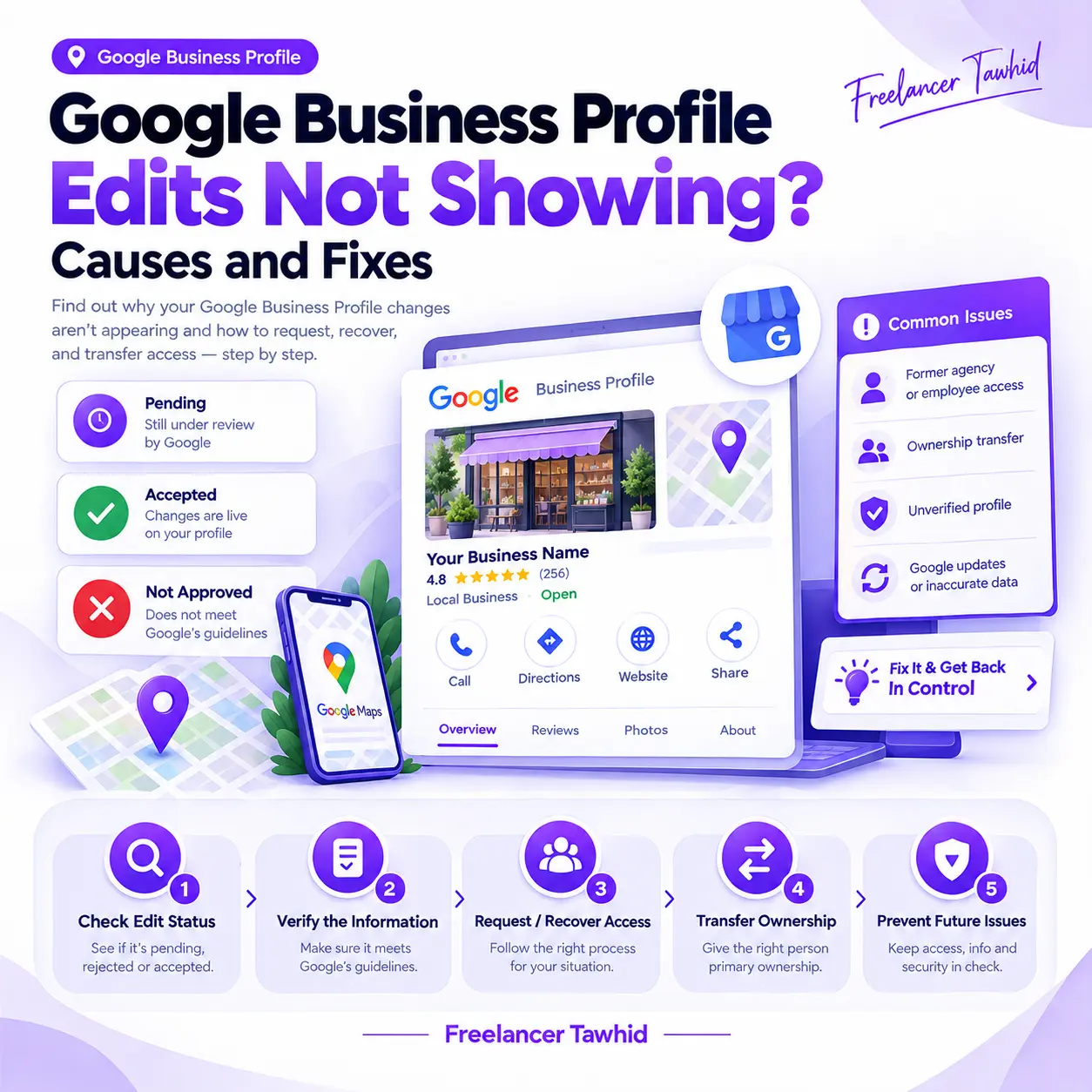
When Google Business Profile edits are not showing, the cause may be a pending review, a rejected change, an unverified profile, an update made by Google, or inaccurate information that Google cannot confirm. The right solution depends on the status of the edit and the type of information that was changed.
Repeatedly submitting the same change without understanding the underlying issue is not a reliable solution. Instead, check the edit status, confirm that the information accurately represents your business, review Google’s guidelines, and follow the appropriate resolution process.
This guide explains why Google Business Profile changes may not appear, how to diagnose the problem, and what to do when an update remains pending or is rejected.
Why Are My Google Business Profile Edits Not Showing?
Google reviews edits to verified Business Profiles to help ensure that the information displayed to customers is accurate and follows its guidelines.
After you submit an edit, its status may be accepted, pending, or not approved. Each status requires a different response.
According to Google’s official guidance on Business Profile edits, reviews usually take up to 10 minutes, but some changes can take up to 30 days.
Common reasons for changes not appearing include:
- The edit is still under review.
- Google could not confirm the accuracy of the submitted information.
- The profile has not been verified or requires additional verification.
- Google has changed the business information using other available sources.
- The proposed information does not follow Google’s Business Profile guidelines.
- The change was saved to a different profile or has not been correctly confirmed.
- The profile has a separate verification, restriction, or suspension issue.
The first step is to identify which situation applies. A pending edit, a rejected edit, and an inaccessible profile are not the same problem.
1. Check the Status of Your Google Business Profile Edit
Before making further changes, check the status of the submitted edit.
Google identifies three main edit statuses: accepted, pending, and not approved.
Accepted Edits
An accepted edit means Google has approved the submitted change and the updated information should display on the Business Profile.
If the status is accepted but you cannot see the new information, check the profile carefully on Google Search and Google Maps. Make sure you are viewing the correct business and the relevant information field.
If the correct public profile still displays outdated information, document the discrepancy and consult the appropriate Google support guidance if necessary.
Pending Edits
A pending edit means Google is still reviewing the change.
Google says this usually takes up to 10 minutes, although it can sometimes take up to 30 days.
While the edit is pending, the previous information may remain visible. This does not necessarily mean that the submission failed.
Check the pending status and allow the review process to proceed. If the edit remains unresolved beyond the stated review window, review the information and use the appropriate support options.
Not Approved Edits
A not-approved edit means Google did not accept the proposed change, potentially because it could not confirm that the information was accurate.
Simply waiting may not resolve this situation.
Review the exact field that was rejected, check whether the proposed information accurately reflects the real business, and determine whether the appropriate next step is to correct the information or appeal the decision.
For the latest instructions, use Google’s Business Profile edit-status guidance.
2. What to Do When Google Business Profile Edits Are Pending
A pending edit is still under review. The most useful response is to check the submission carefully rather than making repeated changes without a clear reason.
Step 1: Confirm the Edit Was Saved
Open the Google Account associated with the Business Profile and check the relevant business information.
Confirm that you selected the appropriate save or submit option and that the expected change appears in the profile editor or edit-status interface.
Step 2: Check the Pending Status
Use Google’s available edit-status information to confirm that the change is still pending rather than rejected.
Different statuses indicate different next steps, so do not assume that every delay requires an appeal.
Step 3: Review the Accuracy of the Information
Confirm that the submitted information matches the real-world business.
For example, check that the phone number is correct, the operating hours are current, and the business name reflects the name genuinely used by the business.
If the change involves an address, category, or business name, review Google’s requirements for that specific field.
Step 4: Allow Time for Google’s Review
Google states that edits usually take up to 10 minutes to review, but in some cases the process can take up to 30 days.
Avoid treating a short delay as proof that the profile is broken.
If the edit remains pending for an unusually long period, check the current status and available support options before taking further action.
Step 5: Escalate an Unresolved Problem Appropriately
If a legitimate edit remains unresolved beyond the published review window, consult Google’s Business Profile Help and use the available contact options.
Explain which information was changed, when the edit was submitted, what status is displayed, and what information remains incorrect.
Keep the explanation factual. Do not submit multiple appeals for the same issue when Google instructs you to wait for a decision.
3. How to Fix Rejected Google Business Profile Edits
If Google rejects an edit, first identify the field that was not approved.
Different information fields have different requirements, so the correct fix depends on whether the rejected change concerns the business name, address, category, phone number, website, or another detail.
Check Your Business Name
Your Business Profile name should represent the real-world name of the business.
Do not add service keywords, city names, or marketing slogans solely to influence rankings if they are not genuinely part of the business name.
Google’s guidelines for representing your business explain the requirements for business names and other profile information.
Check Your Address and Service-Area Settings
If the rejected change concerns your address, confirm that the location is genuine and appropriate for the business model.
Storefront businesses and service-area businesses have different requirements for displaying physical addresses.
Do not use a virtual office, an invented address, or a location where the business is not eligible to operate simply to make an edit appear acceptable.
Review the official guidelines before resubmitting address information.
Check Your Business Category
Choose a category that accurately represents the business’s primary activities.
Google recommends selecting as few categories as necessary to describe the overall business and choosing specific categories that genuinely represent what the business does.
Adding unrelated categories to capture more searches is not an appropriate way to resolve a rejected edit.
Check Your Phone Number and Website
Make sure the phone number and website represent the actual business.
Review the submitted values for errors, outdated details, broken URLs, or information that conflicts with the business’s legitimate identity.
The details shown on your website and other trustworthy business sources can help establish consistency, but they do not guarantee approval.
Correct the Underlying Issue Before Trying Again
Once you understand why the proposed information may be inaccurate or inconsistent, correct the information before making another submission.
Do not repeatedly submit the same unsupported change in the hope that one attempt will be accepted.
If Google has already issued a rejection, review whether an appeal or support request is appropriate for your situation.
4. How to Appeal a Rejected Google Business Profile Edit
Google provides different appeal or support pathways depending on the type of restriction, the rejected information, and the business’s location.
For rejected business information edits involving the business name, category, address, phone number, or website, the process differs for businesses in the United Kingdom or European Economic Area (EEA) and businesses elsewhere.
If Your Business Is in the UK or EEA
Google’s current guidance provides an appeal-tool pathway for eligible rejected business information edits in these regions.
Sign in to the appropriate Google Account, select the relevant profile and decision, and follow the instructions displayed in the appeals tool.
Check the information about the decision and any applicable policy before submitting an appeal.
If Your Business Is Outside the UK and EEA
Google’s published guidance directs businesses outside the UK and EEA to contact Google Business Profile support to appeal rejected business information edits.
Open the relevant support contact form, choose the most appropriate issue, and provide the requested details.
Prepare Evidence When Requested
Depending on the issue and the available process, supporting evidence may be useful.
Examples include:
- Official business registration.
- An applicable business licence.
- Tax certificates.
- Utility bills associated with the business.
Ensure that the business name and address on supporting documents match the information being submitted wherever applicable.
Do not alter documents or provide information that does not accurately represent the business.
Follow the Appeal Instructions
Review the requirements shown by Google before submitting evidence.
Google advises users to avoid submitting multiple appeals for the same issue before receiving a decision.
For current regional instructions, see Google’s official guide to appealing Business Profile content and restrictions.
If your entire profile is suspended or disabled, resolve that separate issue through the appropriate reinstatement process before appealing associated content decisions where required.
5. Why Google Keeps Changing Your Business Information
Sometimes the problem is not that Google’s system failed to apply your edit. Google may have changed the information on the profile using other sources.
Google explains that it can gather business information from sources such as user reports and licensed content to help keep profiles accurate.
These updates may appear in the profile editor, and Google may notify the business when certain information changes.
Check for Google Updates
Open your Business Profile editor and look for notifications or indicators that information has been changed by Google.
The editor may distinguish information changed by Google from information that has not received a Google update.
Review the details carefully to understand whether the information you submitted was retained or whether another update affected the profile.
Review the Accuracy of the Public Information
Compare the information currently displayed in Google Search and Maps with the real-world business details.
If the displayed information is incorrect, submit an appropriate correction and follow the available review process.
Where possible, ensure the website and other reliable business information sources accurately reflect the business. This can help establish consistency, although it does not guarantee that Google will accept every edit.
Respond to Suggested Edits When Notified
Google may send an email or in-product notification about certain suggested edits that require your review.
Its current guidance says you generally have four days to accept or reject such a suggestion when notified. If you do not respond, Google may publish an update when it is supported by other publicly available information.
This is separate from the review process for an edit that you submitted yourself.
Read Google’s guide to managing updates on your Business Profile to understand the relevant notifications and controls.
6. Why Your Unverified Business Profile Edits May Not Appear
Verification can affect which information you can manage and whether your business information appears across Google’s services.
Google states that some information can be edited on an unverified profile, but verifying the profile is required to edit all available information.
If your profile is unverified, check its verification status and follow the available method Google provides.
Do not assume that every missing edit is caused by verification. First determine which field was changed, what status appears, and whether a separate verification issue exists.
If verification is the actual problem, follow Google’s verification process rather than repeatedly submitting ordinary edits.
You can read my guide to Google Business Profile verification methods and common problems for further guidance.
7. What If Your Google Business Profile Is Not Visible at All?
An edit not appearing is different from an entire Business Profile being missing or suspended.
If you cannot find the profile in Google Search or Maps, investigate whether the issue concerns verification, business eligibility, profile ownership, suspension, or another restriction.
Check the Profile’s Verification Status
Confirm whether Google considers the profile verified and whether additional verification is required.
Check for Suspension or Restrictions
Review any notification in the account and check the applicable policy or restriction.
If your profile is suspended or disabled, follow the relevant reinstatement instructions rather than treating the situation as a routine pending edit.
For more information, read Google Business Profile Suspension and Appeal.
Do Not Create a Duplicate Profile
Creating a new profile for the same business is not a reliable way to fix a missing edit or an existing profile restriction.
First identify the underlying problem and follow Google’s appropriate recovery or support process.
8. How to Prevent Google Business Profile Edit Problems
Not every review delay can be prevented, but accurate information and careful profile management can reduce avoidable problems.
Use Accurate Business Information
Make sure that the profile reflects the real business name, location, operating hours, contact details, services, and relevant categories.
Follow Google’s Guidelines
Review the applicable rules before making significant changes, especially to the business name, address, and categories.
Make Changes Deliberately
Review the information before submitting it. When an edit is pending, check its status before making further changes without a clear reason.
Keep Reliable Business Information Available
Maintain accurate information on your website and other appropriate business sources.
These sources do not guarantee approval, but they can help you identify inconsistencies and present a clearer picture of the real business.
Monitor Profile Notifications
Review relevant profile notifications and emails so you can respond to important requests or suggested edits.
Maintain Appropriate Access and Verification
Use an authorized Google Account, maintain suitable access permissions, and keep the profile’s verification status under review.
A profile-management process that assigns clear responsibility for business information can help avoid missed notifications and inconsistent updates.
Frequently Asked Questions About Google Business Profile Edits
How long does Google Business Profile take to approve edits?
Google says edits usually take up to 10 minutes to review, but some can take up to 30 days. The actual time depends on the review process and the specific change. Check the displayed status instead of assuming that every delay indicates a problem.
Why are my Google Business Profile changes pending?
A pending status means Google is reviewing the change. Confirm that the information is accurate, check the status, and allow time for review. If it remains unresolved beyond Google’s stated review window, use the appropriate support options.
Why did Google reject my Business Profile edit?
Google may reject a change if it cannot confirm the proposed information’s accuracy or if the change does not comply with applicable guidelines. Review the specific field and correct any inaccuracies before considering an appeal or support request.
Can I appeal a rejected Google Business Profile edit?
Yes, an appeal or support pathway may be available. Google directs eligible UK and EEA businesses to its appeal tool for certain rejected business information edits, while businesses outside those regions are directed to contact support. Follow the current instructions for your specific case.
Why does Google keep changing my business information?
Google may use reports and other information sources to update a Business Profile when it believes that information is inaccurate or outdated. Check the profile editor for Google updates and correct any inaccurate information using the appropriate process.
Should I keep resubmitting an edit that is pending?
Do not repeatedly submit the same change without checking its status or understanding the problem. Review the current status first. If the edit remains pending beyond the stated review window, consult the relevant support instructions before taking further action.
Can an unverified Google Business Profile display edits?
Some changes may be possible on an unverified profile, but Google says verification is needed to edit all available business information. Check the profile’s verification status if the missing information may be related to an unverified profile.
What if my profile disappears after I make an edit?
Check whether the profile is unverified, suspended, restricted, inaccessible, or affected by another issue. A missing profile is not necessarily the same as a pending edit. Use the appropriate verification, ownership, or reinstatement process based on the actual status.
Will fixing Google Business Profile edits improve my local rankings?
Correcting inaccurate business information can help keep the profile useful and accurate, but approval of a particular edit does not guarantee improved rankings. Local search visibility depends on other factors, including relevance, distance, and prominence.
Resolve Business Profile Issues With a Clear Local SEO Strategy
When Google Business Profile edits are not showing, the most effective first step is to determine whether the change is pending, rejected, overridden by a Google update, or affected by a separate profile issue.
Check the status, confirm that the information is accurate, and follow the official guidance appropriate to the problem. Avoid duplicate profiles and unsupported changes that can make the situation more difficult to resolve.
I’m Tawhid, an SEO Expert & Consultant at Freelancer Tawhid. I work with businesses worldwide on Local SEO strategy, Google Business Profile optimization, Google Maps SEO, and related search visibility challenges.
If your profile needs a broader assessment or structured optimization, explore my Google Business Profile Optimization service or Local SEO services.
The objective is to keep your business information accurate, follow Google’s requirements, and build a stronger foundation for local search visibility.