
How to Edit Google Business Profile Services, Hours, Categories, and Business Information

Freelancer Tawhid
SEO Expert and Consultant
- October 19, 2026
- 0 comments
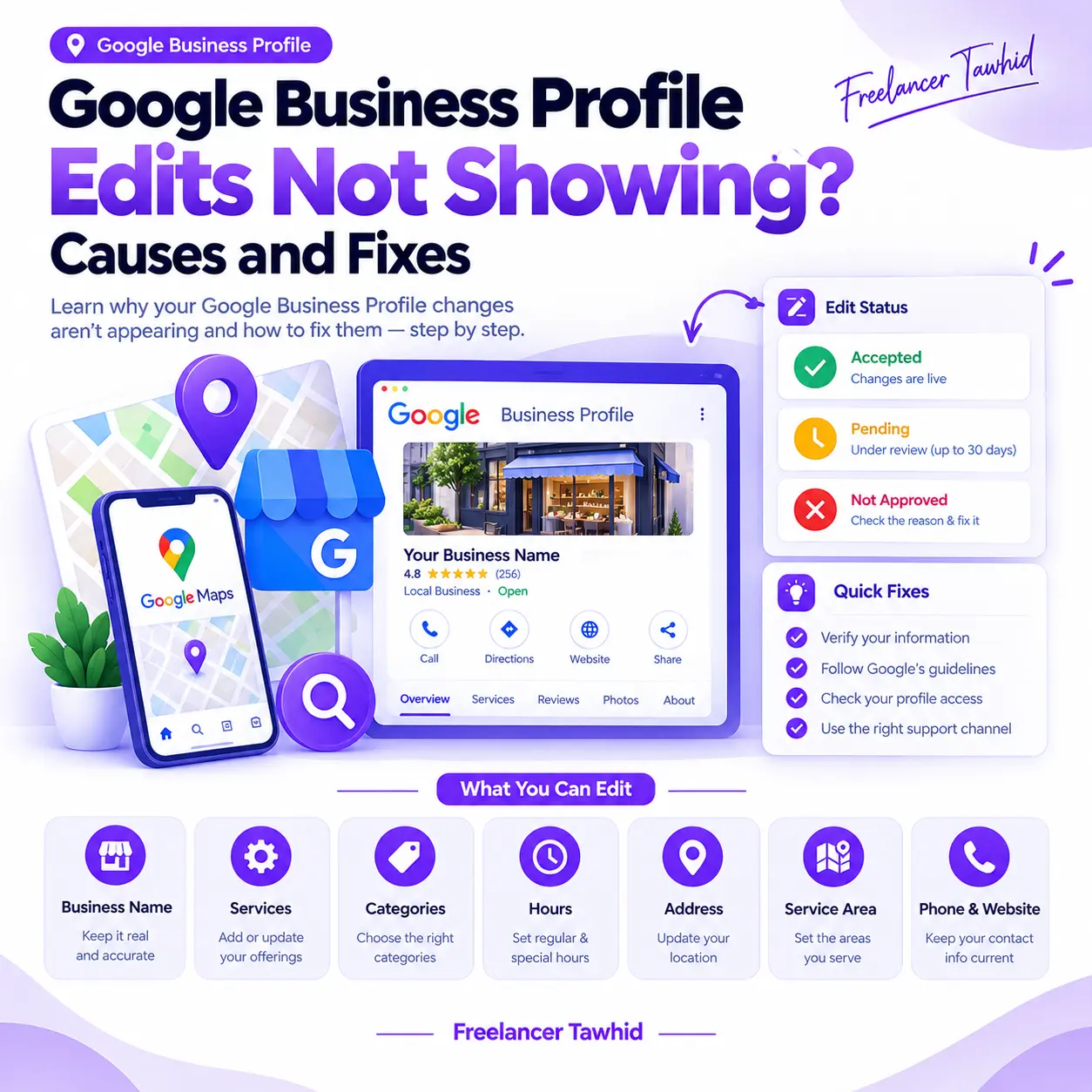
Keeping your Google Business Profile accurate helps customers understand what your business offers, when it operates, and how they can contact you. If your services, business hours, categories, address, or contact details have changed, updating the profile helps ensure that customers see relevant information on Google Search and Maps.
You can edit your Business Profile directly through Google Search or Google Maps using the Google Account associated with the profile. Some changes may require verification or review before they appear publicly, and available editing options can vary by business type and category.
This guide explains how to edit Google Business Profile information, update services and categories, change operating hours, manage service areas, and avoid common mistakes that can delay or affect your changes.
How to Edit Your Google Business Profile
For most business information, you can make changes directly from Google Search or the Google Maps app.
Before starting, sign in to the Google Account associated with the Business Profile. You must have the appropriate access permissions, and some changes may require the profile to be verified.
Edit Your Business Profile Through Google Search
Follow these steps:
- Sign in to the Google Account that manages your Business Profile.
- Search for your business name on Google, or find your profile through Google Search.
- Open the Business Profile management interface.
- Select Edit profile.
- Choose the relevant section, such as Business information, Contact, Location, Hours, or Services.
- Update the applicable information.
- Select Save and follow any additional instructions.
The available options may differ depending on the field you are editing.
Edit Your Business Profile Through Google Maps
You can also manage your profile through the Google Maps mobile app.
- Open Google Maps and sign in to the Google Account associated with your Business Profile.
- Select Business at the bottom of the screen.
- Choose the profile you want to manage, if applicable.
- Tap Edit profile.
- Select the information you want to change.
- Make the necessary corrections and save them.
Google’s interface can change, and some features may appear differently across devices or profile types.
For the latest instructions, see Google’s official guide to editing your Business Profile.
How to Edit Your Google Business Profile Business Name
Your business name should accurately represent the name customers recognize in the real world.
To change it:
- Open your Business Profile.
- Select Edit profile.
- Find the business name field.
- Enter the name that accurately reflects your real-world business.
- Save the change and follow any verification instructions Google provides.
Follow Google’s Business Name Guidelines
Do not add keywords, city names, promotional phrases, or service terms to your business name simply to improve rankings.
For example, if a business is genuinely called ABC Plumbing, adding several unrelated service and location keywords to the profile name would not be an appropriate optimization strategy.
Google expects the profile name to reflect the real-world business name used on signage, business documents, and other branding.
Review Google’s guidelines for representing your business before making a significant name change.
Important: Changing a business name after verification may require the profile to be verified again. Make sure the change is legitimate and supported by accurate business information.
How to Change Your Google Business Profile Categories
Business categories help describe what your business does. Selecting an appropriate primary category and relevant additional categories helps Google understand the business represented by the profile.
How to Edit Your Primary Category
- Open your Business Profile.
- Select Edit profile.
- Find the Business category field.
- Select the edit option.
- Search for the category that best describes your primary business activity.
- Select the appropriate category and save your changes.
The primary category should describe the business’s main activity, not simply the most competitive keyword you want to target.
How to Add or Remove Additional Categories
Google allows businesses to select additional categories when they accurately describe other activities the business performs.
To update them:
- Open the Business category section.
- Select the option to add another category.
- Choose a relevant category from Google’s available list.
- Remove categories that no longer accurately represent the business.
- Save the changes.
Google permits one primary category and up to nine additional categories.
How to Choose the Right Categories
Use these principles:
- Choose the category that most accurately represents the main business.
- Add additional categories only for other genuine business activities.
- Do not select unrelated categories simply because they appear in competitor profiles.
- Review the available category options before choosing a broader alternative.
For example, a business that genuinely provides multiple distinct services may qualify for relevant additional categories. A business should not select a category for a service it does not offer just to target another search query.
Changes to categories can sometimes trigger additional verification.
For further instructions, see Google’s guide to managing Business Profile categories.
How to Add or Edit Services on Google Business Profile
Eligible businesses may be able to display services directly on their Business Profile. These details help potential customers understand what the business offers before contacting it.
The services editor is not available in every category, so the exact options may vary.
How to Add a Service
- Open your Business Profile.
- Select Edit services when this option is available.
- Review the service suggestions offered for your business category.
- Select the services you genuinely provide.
- Add any relevant custom services that comply with Google’s policies.
- Save your changes.
How to Edit a Service Description or Price
If the services editor supports additional details for a service:
- Open Edit services.
- Select the service you want to update.
- Edit the available description, price, or other supported details.
- Confirm that the information is accurate.
- Save your changes.
The fields available depend on the service and the Business Profile interface.
How to Add Custom Services
If your actual service is not included among Google’s suggestions, you may be able to add a custom service.
Use a concise, accurate name that describes the service.
Do not put telephone numbers, promotional text, irrelevant keywords, or prices in custom service names. Google may automatically reject custom services that violate its policies.
If the interface provides separate fields for a service description or price, use those fields appropriately rather than placing this information in the service name.
Should You Add Every Possible Service?
No. Add the services your business actually offers and that are relevant to customers.
A complete and accurate service list is more useful than an extensive list containing unrelated or speculative offerings.
Choose names that customers can understand, and ensure the listed services agree with the business’s actual operations and website information.
For detailed instructions, consult Google’s guide to managing services on your Business Profile.
You can also explore my Google Business Profile Optimization service for a broader overview of profile optimization.
How to Change Your Google Business Profile Business Hours
Accurate operating hours help customers understand when the business is available.
Google provides options for regular hours, special hours, and certain additional hours for businesses that offer eligible services.
How to Edit Regular Business Hours
- Open your Business Profile.
- Select Edit profile.
- Open the Hours section.
- Find the regular business hours field and select Edit.
- Select the days when the business operates.
- Set the correct opening and closing times.
- Save the changes.
Only enter hours that accurately reflect when the business is available to customers.
If the business operates different shifts on the same day, use the available multiple-interval option where supported rather than entering misleading hours.
How to Set Special Hours
Special hours can be used for temporary changes, such as holidays, special events, or other exceptions to normal operating hours.
Depending on the available interface:
- Open the Hours section.
- Find the special-hours option.
- Select the relevant date.
- Enter the correct hours or mark the business closed.
- Save the changes.
Check special hours before holidays and other dates when normal operating arrangements change.
How to Set Additional Hours
Some businesses can specify additional hours for particular services, such as delivery, takeaway, pickup, or drive-through operations.
These options depend on the business category and available features.
Google generally requires regular business hours to be set before additional hours display.
Make sure that additional hours describe the relevant service accurately and fit the business’s normal operating arrangements.
What If Your Business Operates by Appointment?
Not every business should publish conventional walk-in hours.
Review Google’s business-hours guidelines and use the available options that accurately reflect your business model. A business that operates only by appointment should not misrepresent itself as continuously available to walk-in customers.
For official instructions, see Google’s guide to editing Business Profile hours and its business representation guidelines.
How to Edit Your Google Business Profile Address
Your address should accurately identify the eligible business location represented by the profile.
To change it:
- Open your Business Profile.
- Select Edit profile.
- Open the Location or business-address section.
- Enter the accurate address, if your business is eligible to display one.
- Check the map pin and adjust it if necessary to represent the correct location.
- Save the changes and follow any verification instructions.
What If Your Business Has Moved?
If your business moves to a new address, update the existing profile with the correct information, following Google’s instructions.
Google may require the business to verify again after an address change.
Do not leave an obsolete address on the profile simply because it previously appeared in Google Search or Maps.
Should a Service-Area Business Display Its Address?
A business that travels to customers rather than serving them at a staffed customer-facing location should follow Google’s requirements for service-area businesses.
If the business is not eligible to receive customers at its address, it should generally hide the address and specify its service area where appropriate.
Never use a virtual office, an invented location, or an address where the business is not eligible to operate.
For the applicable rules, review Google’s Business Profile guidelines.
How to Add or Edit Your Google Business Profile Service Area
Eligible service-area and hybrid businesses can specify the areas they serve.
A service-area setting should describe genuine operational coverage. It should not be used to claim a physical business presence in places where the business does not operate.
How to Update Your Service Area
- Open your Business Profile.
- Select Edit profile.
- Open the Location section.
- Find Service area and select Edit.
- Choose the relevant cities, postal codes, or other supported areas that your business actually serves.
- Remove areas that are no longer part of your service coverage.
- Save your changes.
Google currently allows up to 20 service areas. Choose the areas that accurately reflect your operations rather than listing every nearby city in an attempt to influence rankings.
Google also notes that approved service-area changes can take time to appear, so check the edit status if the information does not update immediately.
For more information, see Google’s service-area settings guide.
How to Update Your Phone Number, Website, and Contact Information
Accurate contact details help customers reach the right business.
The available options may vary by profile, but the general editing process is similar.
Update Your Phone Number
- Open Edit profile.
- Find the Contact section.
- Edit the phone number field.
- Enter the correct number controlled by the business.
- Save the changes.
Google allows a primary phone number and, where supported, additional phone numbers.
Use a number that genuinely connects customers with the business. Avoid using an unrelated tracking number or a number that redirects customers to another business in a way that conflicts with Google’s requirements.
Update Your Website URL
Open the Contact section and edit the website field.
Make sure the URL leads to the correct website and represents the business. Check that the page loads correctly and is not a broken link or an unrelated destination.
Where appropriate, link to the business’s genuine website rather than an unrelated third-party landing page.
Check Other Contact Options
Some profiles may offer additional contact or messaging features, depending on availability and eligibility.
Use only the contact methods that the business can actually manage and respond to.
After saving, review the public profile to confirm that the contact information is correct.
How to Edit Your Google Business Profile Business Description
The business description helps explain what the business does, the products or services it offers, and what potential customers should know about it.
To update the description:
- Open your Business Profile.
- Select Edit profile.
- Find the description field, if available.
- Write a concise, accurate explanation of the business.
- Save the changes.
What Should You Include?
A useful description can explain:
- The business’s main services or products.
- The type of customers it serves.
- Relevant aspects of the business’s experience or approach.
- Distinctive offerings that can be substantiated.
- Other factual information that helps customers understand the business.
What Should You Avoid?
Do not use the description as an advertising block filled with keywords, promotional claims, prices, or links.
Avoid unsupported statements such as guaranteed number-one rankings or claims that cannot be substantiated.
The description should help customers understand the business, not attempt to manipulate search rankings through keyword repetition.
Always follow Google’s content and business-information guidelines.
What If Your Google Business Profile Changes Are Not Showing?
After editing business information, you may not see the changes immediately.
Google reviews edits before publishing them, and some changes require additional verification. The current status helps determine the next step.
Check the Edit Status
Review whether the edit is accepted, pending, or not approved.
If it is pending, allow time for review. Google says edits usually take up to 10 minutes, but some can take up to 30 days.
Confirm That the Correct Profile Was Edited
If you manage multiple locations or Google Accounts, confirm that the edit was submitted to the intended profile.
Review Rejected Information
If the edit was rejected, examine the relevant field and confirm that the information follows Google’s guidelines.
Follow the Appropriate Resolution Process
Use the relevant official help process when the change remains unresolved.
For a complete troubleshooting guide, read Google Business Profile Edits Not Showing? Causes and Fixes.
If the problem concerns a missing verification step rather than the information itself, consult How to Verify a Google Business Profile.
Common Mistakes When Editing Google Business Profile Information
Adding Keywords to the Business Name
Changing the business name purely to include more keywords or locations can violate Google’s guidelines.
Use the genuine business name.
Choosing Irrelevant Categories
Do not select categories only because competitors use them. Choose categories that accurately represent your business activities.
Listing Services You Do Not Offer
A service list should describe real offerings. Incorrect information can mislead customers and create policy issues.
Publishing Inaccurate Hours
Incorrect hours can cause customers to visit when the business is closed or expect a service that is unavailable.
Keep regular and special hours updated.
Using an Inaccurate Service Area
Only list areas that the business genuinely serves. A service-area setting is not a substitute for a real, eligible business location.
Making Repeated Changes Without Checking Their Status
If a change is pending, check its status before resubmitting it without a clear reason. If it is rejected, determine why and follow the appropriate process.
Ignoring Verification or Ownership Problems
Some editing issues cannot be resolved through ordinary profile changes. If you lack the necessary permissions or the profile requires verification, address that issue first.
For broader optimization guidance, see my Google Maps SEO service.
Google Business Profile Information Checklist
Use this checklist whenever you review or update a profile.
- Business name accurately reflects the real-world business.
- Primary category represents the main business activity.
- Additional categories are relevant and accurate.
- Services reflect actual offerings.
- Business hours are current.
- Special hours are set where necessary.
- Address and map pin are accurate where an address is eligible to appear.
- Service areas reflect genuine coverage.
- Phone number connects customers with the business.
- Website URL points to the correct destination.
- Business description is factual and useful.
- Profile changes have been saved and their status checked.
- Required verification and access permissions are in place.
A periodic review of these details can help identify outdated information before it causes confusion for customers.
Frequently Asked Questions About Editing Google Business Profile Information
How do I edit my Google Business Profile?
Sign in to the Google Account associated with your profile, find your business on Google Search or Google Maps, select Edit profile, update the relevant information, and save your changes. Some edits may require verification or review.
How do I edit services on Google Business Profile?
If the services editor is available for your business, open the profile, select Edit services, choose or add the services you actually provide, update any supported descriptions or prices, and save. Available options vary by category.
Can I change my primary Google Business Profile category?
Yes. Open Edit profile, select the Business category field, choose the category that most accurately represents your main business activity, and save. Google may request additional verification after certain category changes.
How do I change my Google Business Profile hours?
Open Edit profile, select Hours, and update the regular business hours. You can also set special hours for temporary changes and additional hours for eligible services where those options are available.
Can a service-area business hide its address?
Eligible service-area businesses that do not serve customers at their business address should follow Google’s requirements for hiding that address and setting an accurate service area. The appropriate configuration depends on the business model.
Why do my Google Business Profile edits require verification?
Google may require verification to confirm that the person managing the profile is authorized and that the business information is accurate. Some changes, including certain name, address, and category changes, may trigger additional verification.
How long does it take for Google Business Profile edits to appear?
Google says edits typically take up to 10 minutes to review, although some can take up to 30 days. Certain service-area changes may have their own stated processing times. Check the status of the specific edit rather than assuming every change follows the same timeline.
Can I edit Google Business Profile information from my phone?
Yes. You can manage your profile through the Google Maps app when signed in to the associated Google Account. The available editing options can vary by device, profile type, and feature.
Keep Your Google Business Profile Accurate
Editing Google Business Profile information is an important part of maintaining an accurate local search presence. Business categories, services, hours, contact details, and service areas should reflect how the business actually operates.
The best approach is to make accurate changes, follow Google’s guidance, confirm that the correct profile is being managed, and check the status of submitted edits when necessary.
I’m Tawhid, an SEO Expert & Consultant at Freelancer Tawhid. I work with businesses worldwide on Local SEO strategy, Google Business Profile optimization, Google Maps SEO, and related search visibility challenges.
If you need help reviewing your profile, identifying optimization opportunities, or developing a broader local search strategy, explore my Google Business Profile Optimization service or Local SEO services.
The goal is to keep your business information accurate, make it easier for potential customers to understand your services, and support a reliable local search presence.