
Google Business Profile Ownership and Access Problems: How to Request, Recover, and Transfer Access

Freelancer Tawhid
SEO Expert and Consultant
- October 18, 2026
- 0 comments
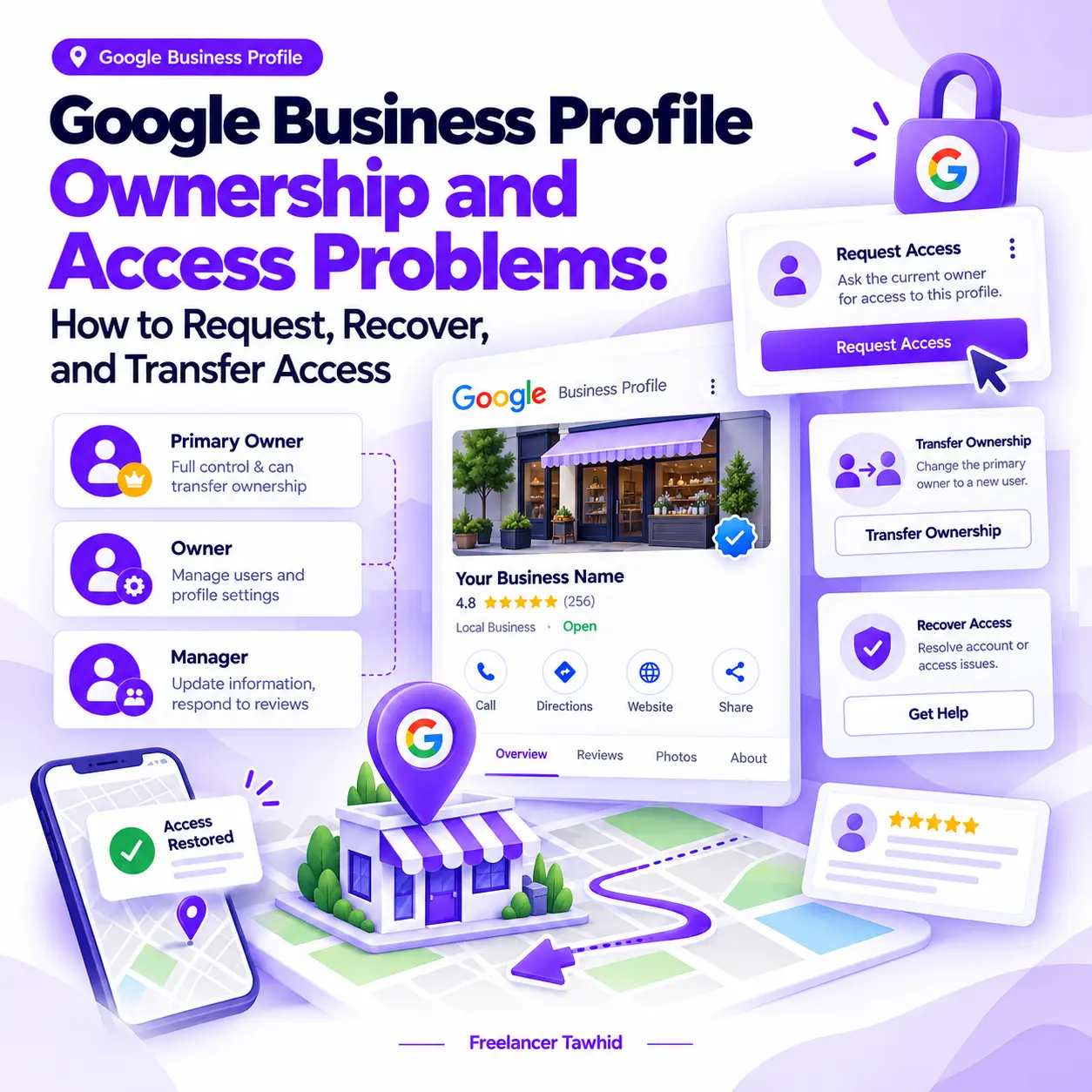
Losing access to a Google Business Profile can prevent a business from managing important information, responding to reviews, updating services, and monitoring its local search presence. The problem often occurs when a former employee, marketing agency, previous business owner, or another Google Account retains control of the profile.
The right solution depends on who currently owns the profile, whether the business can contact that person, and whether the problem involves ownership, user permissions, verification, or account security.
This guide explains how Google Business Profile ownership works, how to request access from another owner, how to handle former agencies or employees, and how to transfer primary ownership without creating unnecessary complications.
What Is a Google Business Profile Ownership Problem?
A Google Business Profile ownership problem occurs when an authorized business owner cannot obtain or maintain the appropriate control over the profile representing their business on Google Search and Maps.
For example, a business might discover that:
- A previous SEO agency created the profile under its own account.
- A former employee still controls the business listing.
- The current owner cannot access the Google Account used to manage the profile.
- Another person owns the verified profile and has not granted the business access.
- An existing owner needs to transfer primary ownership to someone else.
- A business has access as a manager but cannot add or remove users.
These situations can look similar, but they do not all require the same process.
If your business is already represented by a verified profile that someone else manages, the appropriate starting point is usually Google’s ownership-request process, not creating another listing.
Read Google’s official guide to requesting ownership of a Business Profile before taking action.
Google Business Profile Owner vs. Primary Owner vs. Manager
Understanding user permissions is essential before attempting to recover or transfer access.
Google allows multiple users to manage a Business Profile, but their permissions are not identical.
Primary Owner
A Business Profile has one primary owner.
The primary owner has the principal ownership role and can transfer primary ownership to another eligible owner or manager according to Google’s process.
The primary owner role should be managed carefully, particularly when a business changes agencies, employees, or legal ownership.
Owner
An owner has broad administrative permissions. Owners can add or remove users and manage important aspects of the profile.
A Business Profile can have multiple owners, but only one primary owner.
Not every person who needs to work on the profile requires owner-level permissions.
Manager
A manager can perform most routine profile-management activities, including editing business information, responding to reviews, publishing posts, and managing other permitted features.
Managers generally cannot add or remove other users or remove the profile itself.
For many agency relationships, manager access is sufficient for day-to-day optimization.
Google explains these distinctions in its official guide to managing Business Profile owners and managers.
Why These Roles Matter
Suppose a business hires a new SEO consultant.
The consultant may need permission to optimize categories, update services, respond to reviews, or review profile information. Those activities do not automatically require making the consultant the primary owner.
The business should maintain appropriate ownership and grant only the permissions required for the agreed work.
How to Request Ownership of a Google Business Profile
If your business has an existing verified profile that another person owns, you may be able to request access through Google’s ownership-request process.
The standard process for a storefront or hybrid business is outlined below.
Step 1: Sign In to the Appropriate Google Account
Use the Google Account that the business intends to use for profile management.
Ideally, this should be an account controlled by the business owner or an appropriately authorized representative.
Do not ask another person to share their Google Account password. Google supports individual access through separate accounts.
Step 2: Find the Existing Business Profile
Open Google Business Profile management.
Enter the business name and address, then select the correct business from the available results.
Check the business name and location carefully before continuing, particularly if several businesses have similar names.
Step 3: Select Request Access
If Google indicates that someone else may manage the profile, review the available options and select Request Access when it is offered.
Complete the form with the relevant details and submit the request.
This process should be used for the legitimate existing profile rather than creating a replacement for the same business.
Step 4: Keep the Confirmation Email
After submitting the request, Google sends an email confirmation. The current profile owner is notified and is generally given three days to respond.
Keep the confirmation email and use it to check the status of the request.
Step 5: Follow the Result of the Request
The next step depends on the current owner’s response.
Request outcome | What to do next |
Approved | Follow the email instructions and confirm that the appropriate access is available. |
Denied | Review the notification and available appeal options. |
No response after three days | Check the confirmation email and profile for any available claim or verification option. |
Process unavailable | Consult the applicable Google Business Profile Help guidance or contact support. |
Google notes that the option to claim a profile after the owner fails to respond is not always available. Do not assume that every ownership request will automatically result in access after three days.
For the latest process, follow Google’s ownership-request instructions.
What If You Cannot Request Ownership of a Service-Area Business?
Google provides a different pathway for certain service-area businesses that travel to customers rather than operating a customer-facing storefront.
If the existing profile is for a service-area business and the standard ownership-request process is not available, Google’s guidance directs users to contact Business Profile support and select the issue description Transfer ownership of listing where applicable.
Start with the official ownership-request guide and follow the current instructions for the business type.
Do not invent a physical address, change the business model, or create a duplicate listing just to make an ownership option appear.
The goal is to recover authorized management of the existing profile while keeping its information accurate.
How to Recover Access When a Former SEO Agency Owns the Profile
A business may discover that the SEO agency responsible for its previous optimization work created the profile and retained ownership.
This can become a problem if the contract ends, communication stops, or the business changes providers.
Step 1: Contact the Previous Agency
Start by requesting access or an ownership transfer in writing.
Identify the correct business profile and explain which access arrangement is required.
If the agency is cooperative, it may be able to add a business-controlled account as an owner and transfer primary ownership through the appropriate settings.
Step 2: Use Google’s Formal Ownership Process When Necessary
If the previous agency does not respond or refuses to provide the appropriate access, review the ownership-request and support pathways offered by Google.
Keep copies of relevant correspondence, your ownership-request confirmation, and any documentation that helps establish your authority to manage the business.
The availability of an appeal or other recovery option depends on the circumstances.
Step 3: Confirm Business Ownership and Permissions
Once access is restored, check who is listed as the primary owner, other owners, and managers.
Make sure the business has appropriate control and that the permissions granted to external providers match their responsibilities.
Do not assume that receiving manager access resolves a primary-ownership issue if the business needs to control ownership itself.
Step 4: Review Other SEO and Business Assets
If the previous provider also managed the website, domain, analytics, advertising accounts, or other business systems, review those separately.
Google Business Profile ownership does not automatically provide access to these assets.
A documented account and asset handover can reduce the risk of similar problems in the future.
For guidance on your wider local search presence, explore Local SEO services.
What If a Former Employee Still Controls Your Google Business Profile?
A former employee may have created the profile using a personal Google Account or retained ownership after leaving the company.
The business should first establish which accounts currently have access and whether another authorized owner can resolve the problem.
If an existing owner can manage the profile, they may be able to add a business-controlled account, adjust permissions, and remove the former employee when appropriate.
If no authorized user can resolve the issue, use the applicable ownership-request process.
When access is restored, review all current users rather than removing just the individual associated with the original problem.
The business should also establish an offboarding procedure that covers Google Business Profile, website administration, analytics, and other relevant business assets whenever employees or contractors leave.
How to Transfer Primary Ownership of a Google Business Profile
A business may need to transfer primary ownership when selling a business, changing its ownership structure, replacing an administrator, or correcting an inappropriate management arrangement.
If the existing primary owner can access the profile and cooperate, transferring ownership is usually more straightforward than recovering a profile controlled by someone else.
Step 1: Add the New User if Necessary
The new user must already be an eligible owner or manager of the profile before primary ownership can be transferred to them.
If they have not been added, an existing owner can invite them through the profile’s user-management settings.
Google’s guide to managing owners and managers explains how to add users.
Step 2: Open People and Access
Sign in to the account that currently has the required owner permissions.
Open the Business Profile, then navigate to:
More → Business Profile settings → People and access
The interface may change over time, so follow the current options displayed in the profile.
Step 3: Select the Intended New Primary Owner
Choose the appropriate user from the people listed in the profile.
Open the access-role settings and select Primary owner, then save the change.
Only an eligible owner with the necessary permissions can make this transfer.
Step 4: Allow for the New-User Restriction
Google imposes a seven-day restriction on certain actions for new owners and managers.
During this period, users may be unable to transfer primary ownership, remove other owners or managers, or delete the profile.
If a transfer or administrative action fails immediately after a user is added, check whether this restriction applies before repeatedly attempting the same action.
Step 5: Confirm the Ownership Change
After the transfer, check the People and access section to confirm the current primary owner and the permissions assigned to other users.
If a business is being sold, ensure that the appropriate ownership arrangement is completed as part of the broader handover.
Google provides the complete procedure in its official guide to transferring primary ownership.
What If You Are a Manager but Cannot Add or Remove Users?
This may not be an ownership conflict at all.
A manager can perform many routine profile tasks, but managers generally cannot add or remove other users. Those permissions belong to owners.
If you are managing a profile as an agency, consultant, or employee and need access for another authorized team member, contact an existing owner.
Explain why the additional person needs access and request that the owner make the appropriate invitation.
Do not attempt to bypass permission restrictions by sharing the owner’s Google Account credentials. Each person should use their own Google Account.
If your responsibilities require a different access level, the existing owner can review the role settings and determine whether an appropriate change is justified.
What If You Have Lost Access to the Google Account That Owns the Profile?
Sometimes the real problem is not profile ownership but an inaccessible Google Account.
For example, the person responsible may have forgotten the password, lost access to recovery details, or discovered that the account may have been compromised.
1. Try to Recover the Existing Google Account
Start with Google’s official account recovery process.
Follow the instructions that apply to the account and provide the requested information.
If the account is recovered, check whether the Business Profile is still accessible and review its current user permissions.
2. Check Whether Another Authorized Owner Has Access
If the profile has multiple owners, contact an authorized owner who can access it.
They may be able to help restore appropriate management arrangements without requiring a separate ownership request.
3. Review Account Security
If you suspect unauthorized access, secure the Google Account and review its security settings.
Change compromised credentials, follow Google’s recommended account-security steps, and review available recovery information and account activity.
Do not share verification codes or passwords with a person claiming to be able to recover the profile through unofficial methods.
4. Contact Business Profile Support if Necessary
If account recovery does not resolve the issue and no other authorized owner can assist, consult Google Business Profile support for the applicable recovery or ownership options.
The correct pathway depends on whether the problem concerns account access, profile ownership, verification, or another restriction.
If the profile is suspended, use the relevant suspension-resolution process rather than treating the suspension as an ordinary ownership issue.
Why You Should Not Create a Duplicate Profile to Fix an Ownership Problem
Creating a second listing is not an appropriate shortcut for resolving an ownership conflict.
If a verified Business Profile already represents the business, a replacement may create duplicate information and make the situation more complicated.
Instead, establish whether the existing profile is unclaimed, owned by another person, inaccessible because of an account problem, or affected by a separate verification or suspension issue.
Then follow the appropriate Google process.
The same principle applies when an existing employee or agency is unwilling to hand over access: resolve the permissions or ownership problem rather than creating another listing to bypass it.
For more information about the difference between claiming a profile and verifying it, read How to Verify a Google Business Profile.
Google Business Profile Ownership Best Practices for Business Owners
Recovering access is important, but preventing future ownership disputes is equally valuable.
Keep Ownership Under Appropriate Business Control
Where possible, ensure that the business owner or an appropriately designated business-controlled account retains primary ownership.
External agencies and consultants should receive the permissions needed to perform their work.
Google’s Business Profile eligibility and ownership guidelines explain that only business owners or authorized representatives may verify and manage business information.
They also state that authorized representatives should obtain the owner’s consent, keep the owner informed, respond promptly to management-access requests, and transfer ownership to the business owner immediately upon request.
Give Each User Separate Access
Do not share a single Google Account password among employees, consultants, or agencies.
Use the supported owner and manager permissions so access can be granted, reviewed, and removed appropriately.
Review User Access Regularly
Periodically review the People and access section.
Remove users who no longer require access, cancel inappropriate pending invitations, and confirm that the listed users remain authorized to manage the profile.
When an employee or agency relationship ends, address access promptly rather than leaving unused permissions indefinitely.
Protect the Underlying Google Accounts
Enable appropriate account-security protections and maintain up-to-date recovery information.
A Business Profile’s access arrangements depend on the security of the Google Accounts that control it.
Account security should therefore be included in the business’s broader digital-asset management process.
Document Agency and Employee Handover Requirements
Before engaging a service provider, establish who will control the Business Profile, what access the provider requires, and how the profile will be handed over when the relationship ends.
A clear agreement can reduce uncertainty and help prevent disputes.
The aim is not to deny agencies legitimate access, but to ensure that permissions reflect the actual working relationship and the business’s ownership requirements.
Frequently Asked Questions About Google Business Profile Ownership
How do I request ownership of a Google Business Profile?
For a storefront or hybrid business, visit Google Business Profile management, find the existing business, and select Request Access when offered. Complete and submit the request. Google notifies the current owner, who is generally given three days to respond. The available follow-up options depend on the result.
How long does a Google Business Profile ownership request take?
Google states that the current owner has three days to respond to an ownership request. If the request is approved, access can then be granted. If the owner does not respond, a claim or verification option may be available, but this is not guaranteed. Additional steps may be necessary depending on the situation.
Can an SEO agency own my Google Business Profile?
An agency may be an authorized representative and can receive appropriate management access, but Google instructs authorized representatives to obtain the business owner’s consent and transfer ownership to the business owner upon request. Businesses should maintain appropriate control and avoid unclear ownership arrangements.
What should I do if a former agency refuses to transfer my profile?
Request the appropriate access or ownership transfer in writing. If the agency does not cooperate, follow Google’s ownership-request process and any available support or appeal pathway. Preserve relevant correspondence and ensure that you are authorized to manage the business. The specific recovery options depend on the circumstances.
Can a manager transfer primary ownership?
A manager cannot transfer primary ownership merely because they manage the profile. The transfer must be performed by an eligible owner with the necessary permissions. A manager who needs ownership should request the appropriate change from the current owner.
Why can’t I add another person to my Business Profile?
Adding users generally requires owner permissions. Managers can perform many routine activities but cannot add or remove users. If you only have manager access, contact an existing owner to request the necessary invitation or permission change.
Can I claim a Business Profile if the owner does not respond?
Google may allow a claim or verification option after the current owner does not respond within three days. However, the option is not available in every case. Follow the instructions in the confirmation email or your profile, and consult Google support if the applicable process does not offer a way forward.
Should I create a new profile if I cannot access the existing one?
Generally, no. If the existing profile represents the same business, creating a replacement can create a duplicate and make resolution more difficult. Determine whether the problem concerns ownership, account recovery, permissions, verification, or suspension, then follow the appropriate process.
How can I prevent future ownership problems?
Keep appropriate ownership under business control, provide individual access instead of sharing passwords, review permissions regularly, secure the associated Google Accounts, and establish a clear handover process for employees and agencies.
Protect Your Google Business Profile and Local Search Presence
Google Business Profile ownership and access are important parts of managing a business’s online presence.
When an access problem occurs, the first step is to identify whether the issue involves ownership, user permissions, account security, verification, or suspension. The appropriate resolution should follow Google’s supported process and preserve accurate business information.
Clear ownership, secure accounts, suitable user permissions, and documented handovers can reduce the risk of future disputes.
I’m Tawhid, an SEO Expert & Consultant at Freelancer Tawhid. Through my Local SEO work, I help businesses understand and improve their local search presence, including Google Business Profile optimization, Google Maps SEO, and related website and search visibility issues.
If your Business Profile requires optimization or you need broader guidance on your local search strategy, explore my Google Business Profile Optimization service or Local SEO services.
The goal is to protect the business’s legitimate access, follow Google’s requirements, and create a stable foundation for ongoing local search management.